Why Crash-Consistent VM Backups Aren’t Always Enough

In lab and small-scale environments, it’s common to rely almost entirely on VM-level backups. That’s exactly how my lab is built: a single virtual machine runs several services I depend on regularly, and it’s protected by a daily, CBT-enabled backup job. These backups are crash-consistent, efficient, and most of the time perfectly adequate.

But as soon as a VM hosts applications with persistent state, especially database-backed services like phpIPAM, the limitations of crash-consistent backups become more relevant. Recently, I decided to address that gap by adding a lightweight, application-aware database backup triggered via a VMware snapshot freeze script. This post explains why that extra step matters and outlines the approach.

Crash-Consistent Backups: A Solid Foundation

Crash-consistent VM backups capture the contents of a VM’s disks at a point in time, similar to an unexpected power loss followed by disk imaging. With modern platforms, this generally works well:

  • Journaled filesystems recover cleanly
  • Databases include crash recovery logic
  • CBT-based backups are fast and reliable

For stateless workloads or even lightly used applications restoring a crash-consistent VM often results in a usable system with minimal effort. The problem isn’t that crash-consistent backups are bad; it’s that they don’t guarantee application consistency.

Where Things Break Down: Application Consistency

Databases are resilient, but resilience doesn’t equal certainty. A crash-consistent restore may leave you with:

  • Rolled-back or partially committed transactions
  • Extended database recovery times
  • In edge cases, unrecoverable corruption

In a lab, that risk might seem acceptable… until the data becomes something you actually care about. In my case, phpIPAM stores IP allocations and metadata that would be tedious and error prone to reconstruct manually.

VM-level backups protect the system; application-level backups protect the data.

Why Add Database Backups When You Already Back Up the VM?

Adding a database dump alongside VM backups provides several practical advantages:

  • Known-good consistency: A successful dump proves the data was logically consistent at backup time
  • Faster recovery: Restoring a database is often quicker than restoring an entire VM
  • Targeted restores: Recover application data without rolling back the OS
  • Portability: Restore the data to a new VM or environment if needed

Even if you never use the database backup directly, it significantly reduces uncertainty during recovery.

Coordinating Database Backups with VM Snapshots

The challenge is timing. Ideally, you want the database backup to complete before the VM is backed up, so that the backup contains a very recent application aware backup.

If I used a cron job inside the guest OS that ran at 12:30AM, then a backup that ran at 1:00AM, I’d most likely get a recent backup… however if I decided to change the time of the backup job for some reason, I may forget to adjust the corresponding cron job.

Some backup products support running custom scripts which could trigger this backup, but in my testing required guest OS credentials which would need to be managed.

VMware supports running scripts via custom quiescing (freeze/thaw) scripts, which are executed inside the guest OS immediately before and after a snapshot operation. This mechanism is documented here: https://knowledge.broadcom.com/external/article/313544/running-custom-quiescing-scripts-inside.html

By leveraging this capability, the database dump can run automatically during the backup workflow, without requiring changes to the backup product itself. It would also run for snapshots created in the GUI when the ‘Quiesce guest file system(requires VM tools)’ button is checked.

Freeze Script

At a high level, the freeze script:

  • Is invoked automatically by VMware Tools
  • Runs immediately prior to snapshot creation
  • Triggers a database dump (for example, via mysqldump or mariadb-dump)
  • Blocks snapshot creation until the dump completes

Example Freeze Script

The freeze script is custom code, unique to each environment & likely each VM. In my case, I created a backupScripts.d folder in the existing /etc/vmware-tools/ path. In that backupScripts.d folder, I created a shell script named backupTask.sh with the following content:

#!/bin/bash

# Create a variable for todays date
printf -v date '%(%Y-%m-%d)T' -1
echo "Starting backup for ${date}"

if [ "$1" == "freeze" ]
then
        # devipam
        docker exec devipam-devipam-mariadb-1 mariadb-dump --all-databases -uroot -p"VMware1!" > /tmp/${date}-devipam.sql
        gzip /tmp/${date}-devipam.sql
        mv /tmp/${date}-devipam.sql.gz /data/_backup/devipam/
fi

This is an early example of the script, I subsequently made changes to improve logging (write to file instead of console) and remove the password from script. I wanted to include this sample as it is the core logic needed, a check for the input parameter of ‘freeze’ and then the commands to run for the backup inside that if statement.

Restore Scenarios

With both VM and database backups available, recovery becomes more flexible:

  • Minor data issue – Restore the database dump
  • Application failure – Restore application data without touching the OS
  • OS-level issue – Restore the VM
  • Worst case – Restore the VM and validate data using a known-good dump

This layered approach reduces both recovery time and risk.

Conclusion

Crash-consistent VM backups are an excellent baseline and, for many workloads, entirely sufficient. But once a service becomes important enough that its data matters, relying solely on crash consistency introduces uncertainty.

By adding a simple, application-aware database backup triggered via a VMware freeze script, you can significantly improve recoverability with minimal complexity. The result is a backup strategy that protects not just the VM, but the data that actually matters.
Posted in Lab Infrastructure, Scripting, Virtualization | Leave a comment

How to use PowerCLI with Federated vCenter Logins

Earlier this year, I created a post about using PowerCLI to connect to an environment that was configured for Entra ID authentication (https://enterpriseadmins.org/blog/scripting/how-to-use-powercli-with-entra-id-federated-vcenter-logins/).

I’ve recently deployed VMware Cloud Foundation 9.0.1 in a lab, and with the help of a couple of blog posts (https://williamlam.com/2025/01/vcenter-server-identity-federation-with-keycloak-identity-provider-without-scim.html and https://williamlam.com/2025/06/vcf-9-0-single-sign-on-sso-with-keycloak-idp.html) was able to setup identity broker to connect to Keycloak running in my lab.

I wanted to revisit the previous PowerCLI / Entra ID steps to see if they would work with other identity providers.

Preparation: Create OAuth2 Client (Administrator)

To begin, I logged in as administrator@vsphere.local with a password only and created a new OAuth2Client, using the following cmdlet:

$newOAuthArguments = @{
  ClientID     = 'powercli-client-Brian'
  Name         = 'PowerCLI Client - Brian'
  Scope        = @("openid", "user", "group")
  GrantTypes   = @("authorization_code", "refresh_token")
  RedirectUris = @("http://localhost:8844/authcode")
  PkceEnforced = $true
  AccessTokenTimeToLiveMinutes      = 30
  RefreshTokenTimeToLiveMinutes     = 43200
  RefreshTokenIdleTimeToLiveMinutes = 28800
}
$newClient = New-VIOAuth2Client @newOAuthArguments

This stores some useful information about our new client in a variable. We can retrieve it with:

$newClient.secret

In my case, this returns text similar to: ylBOmz5AzuHkuaW1UtwsRRcRqzYmQbH1

We will need the above ClientID and Secret to log in going forward.

Testing Federated Login with PowerCLI

In a new powershell session, we’ll use the above details to attempt to log in.

$newOAuthArguments = @{
  TokenEndpointUrl         = 'https://h417-vc-01.lab.enterpriseadmins.org/acs/t/CUSTOMER/token'
  AuthorizationEndpointUrl = 'https://h417-vc-01.lab.enterpriseadmins.org/acs/t/CUSTOMER/authorize' 
  RedirectUrl              = 'http://localhost:8844/authcode'
  ClientId                 = 'powercli-client-Brian'
  ClientSecret             = 'ylBOmz5AzuHkuaW1UtwsRRcRqzYmQbH1'
}

$oauthSecContext = New-OAuthSecurityContext @newOAuthArguments

The ClientID and Client Secret were previously created in the prepare section above. The New-OAuthSecurityContext cmdlet will cause the default web browser to launch, where we log in to our IDP (Keycloak in this case).

Once the security context is created, we’ll attempt to log in to our vCenter Server with that context:

$samlSecContext = New-VISamlSecurityContext -VCenterServer 'h417-vc-01.lab.enterpriseadmins.org' -OAuthSecurityContext $oauthSecContext
Connect-VIServer -Server 'h417-vc-01.lab.enterpriseadmins.org' -SamlSecurityContext $samlSecContext

This allowed me to log in using PowerCLI and Keycloak for federated identity, using the same steps as the previous Entra ID authentication example.

Simplifying Authentication with a Wrapper Function

The above code blocks get the job done, but to make the authentication a bit easier to use in my lab, I’ve created a simple wrapper function. It includes the ClientID and ClientSecret in clear text, which is good enough for my purposes, but should probably be revisted in a real world environment. The sample wrapper function expects a host name, then asserts the client values, and causes the authentication window to appear. It then connects to the vCenter (one function instead of 3 cmdlet calls).

Function Connect-FedVIServer {
  param(
    [Parameter(Mandatory=$true, Position=0)]
    [string]$Server
  )
  $newOAuthArguments = @{
    TokenEndpointUrl         = "https://$Server/acs/t/CUSTOMER/token"
    AuthorizationEndpointUrl = "https://$Server/acs/t/CUSTOMER/authorize"
    RedirectUrl              = 'http://localhost:8844/authcode'
  }

  if ($Server -eq 'h417-vc-01.lab.enterpriseadmins.org') {
    $newOAuthArguments.ClientId     = 'powercli-client-Brian'
    $newOAuthArguments.ClientSecret = 'ylBOmz5AzuHkuaW1UtwsRRcRqzYmQbH1'
  }

  $oauthSecContext = New-OAuthSecurityContext @newOAuthArguments
  $samlSecContext = New-VISamlSecurityContext -VCenterServer $Server -OAuthSecurityContext $oauthSecContext
  Connect-VIServer -Server $Server -SamlSecurityContext $samlSecContext
}

Connect-FedVIServer h417-vc-01.lab.enterpriseadmins.org

This function could be included in a profile or common script repository, making authentication easier in the future.

Recorded Authentication Workflow

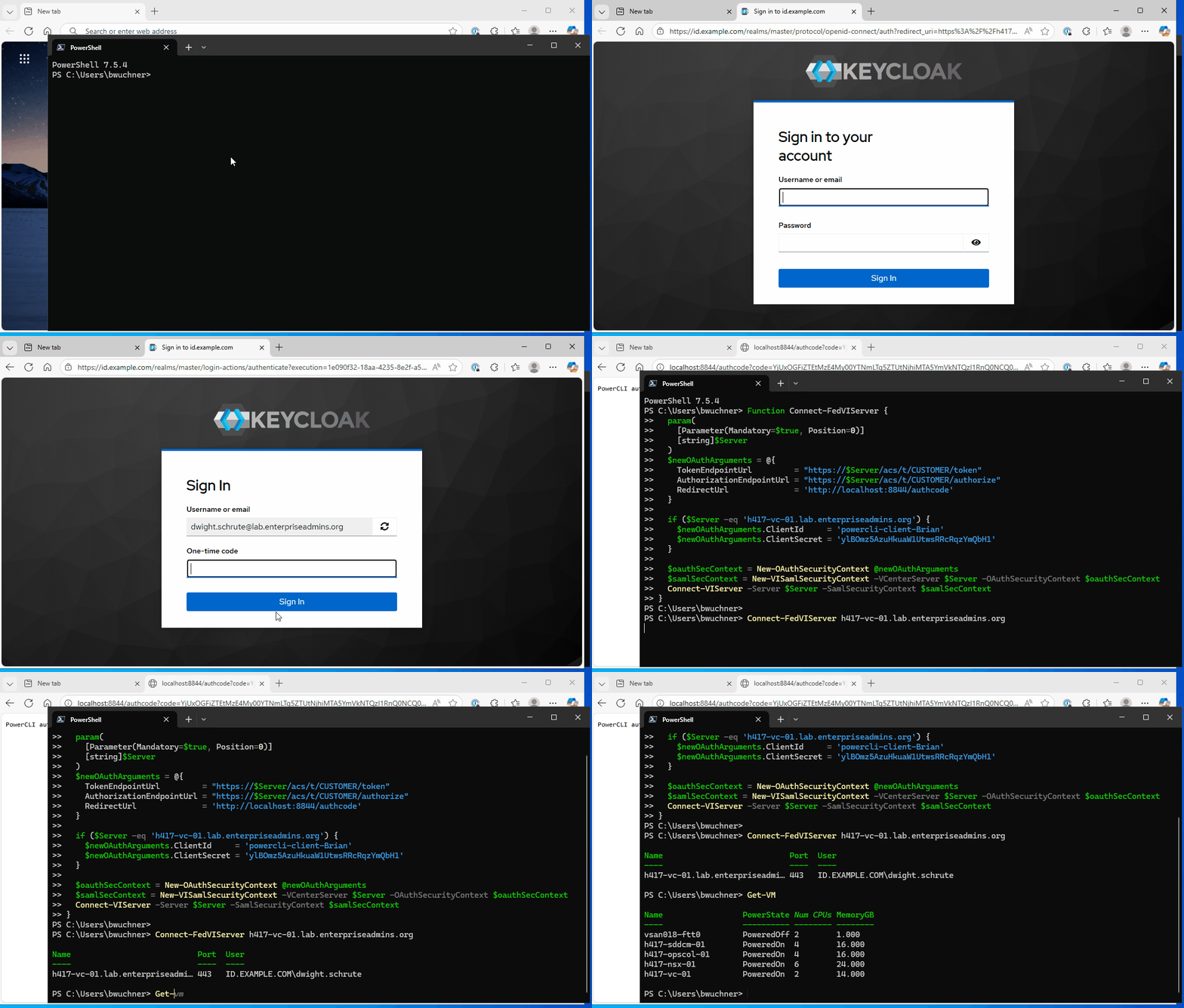
I’ve recorded this authentication workflow in a GIF which should continuously loop through the function execution, log in / OTP challenge, and vCenter connection. It then runs a Get-VM call to show that the connection was successful.

Animated GIF showing PowerCLI connection with Keycloak and One Time Password challenge.

Conclusion

This exercise confirmed that the PowerCLI OAuth2 authentication workflow is not limited to Entra ID and works just as effectively with other federated identity providers, such as Keycloak. As long as vCenter Server is properly configured for identity federation and an OAuth2 client is available, the same PowerCLI pattern can be reused with minimal changes.

In VMware Cloud Foundation 9.x environments, where identity federation is increasingly common, this provides a flexible and scriptable way to authenticate without relying on local SSO credentials. Wrapping the logic into a simple helper function further reduces friction and makes federated authentication feel less different than a traditional Connect-VIServer call.

While this example focuses on a lab setup, the same approach can be adapted for production environments with additional attention paid to secret handling and client management.

Posted in Scripting, Virtualization | Leave a comment

Did You Know VMCA Can Issue Certificates for Other Services?

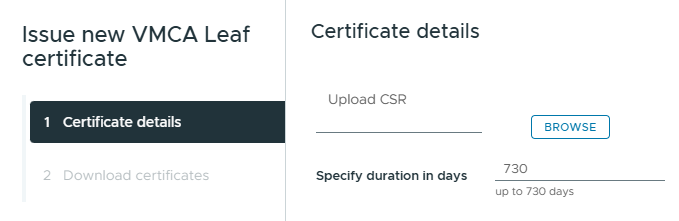
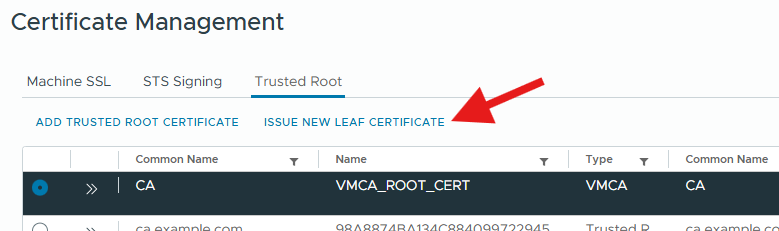
VMware Certificate Authority (VMCA) is used within vSphere to secure connections between vCenter Server and ESXi hosts, but what if we need certificates for other systems? In a previous post, I used group policy to add the VMCA Root CA from a vCenter Server to the trusted enterprise root CAs for all systems in my lab. This enables all lab workstations / jump servers to trust certificates issued by VMCA, for example connections to the ESXi hosts. While creating that post, I noticed an ‘issue new leaf certificate’ option in the vCenter UI that I had not seen before:

So can we use the VMCA to issue certificates to non-vSphere components? This post will explore that use case.

Generate a Certificate Signing Request (CSR)

I created a CSR for a nginx web server. There are many ways to create a signing request, such as openssl at the command line or other tools like https://csrgenerator.com/. For my test, I used the web interface in Aria Suite Lifecycle > Locker > Certificates to request a CSR. This created a single file containing both the signing request and key (similar to the csrgenerator.com website). I then copied the appropriate pieces of those certificates to separate files (one .key and one .cer).

Creating the Certificate

In vCenter Server > Administration > Certificates > Certificate Management > Trusted Root tab, I selected the ‘issue new leaf certificate’ link (pictured above). This presented a dialog box to Upload CSR.

I browsed to the CSR file created and selected Next. Completing this workflow provided two file downloads — 15679973-e9ec-4625-a6aa-5437dc0ef6a8.root.crt and 15679973-e9ec-4625-a6aa-5437dc0ef6a8.leaf.crt. The root certificate is the VMCA root certificate that was deployed via group policy in the previous article. The leaf certificate is the new certificate file created for an nginx webserver.

Applying the Certificate

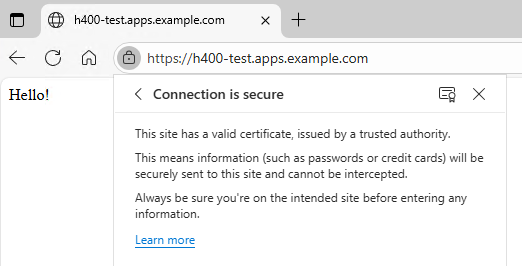
In my nginx configuration, I provide the key file (created in conjunction with the CSR) and the leaf certificate (created from the vCenter Server interface). Accessing the nginx webserver, the browser shows that the connection is secure:

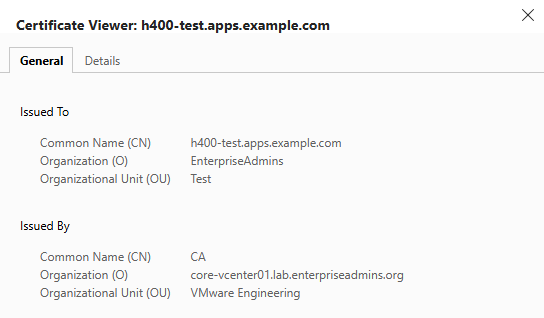
Digging into the certificate details, we can see that our webserver certificate was issued by VMCA.

Conclusion

I had not seen this ‘issue new leaf certificate’ link before and was surprised how easy it was to use VMCA for other non-VMware based services. I could see using this again in a lab environment where a certificate might be necessary, but other PKI solutions are not available.

Posted in Lab Infrastructure, Virtualization | Leave a comment

Simplifying Certificate Trust in Multi-Lab Environments

In my lab I have a jump box that I typically use for management. It is joined to active directory and automatically trusts my primary CA root certificate. This CA issued the Machine SSL certificate for my vCenter Server, so when I go to that system I do not get a certificate warning. However, if I go to an ESXi host, which gets its cert from the self-signed VMCA, I do get a certificate warning. There is another lab I connect to that has a different certificate authority, and I get certificate warnings for all the systems in that environment. I decided to implement a group policy to try and add these additional root CAs to the systems in my lab.

Gathering the root certificates

For the separately managed lab I connect to, the certificate authority runs on Windows. If I navigate to https://ca.other.domain/certsrv/, I can use the “Download a CA certificate, certificate chain, or CRL link” to download the Base 64 encoded CA certificate. This downloads a .cer file that I can import as a trusted root authority to start trusting this lab systems.

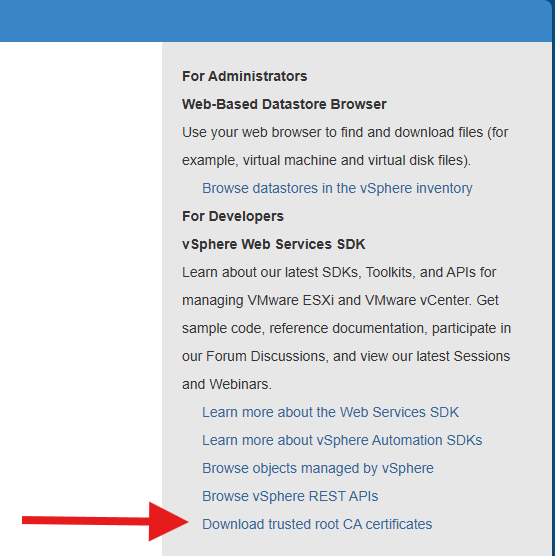
For the VMCA certificate, there were a few additional steps. On the landing page for https://vc1.example.com, there is a “Download trusted root CA certificates’ link.

This downloads a zip file, which in my environment contains a handful of certificate file (as well as some certificate revocation lists). I don’t want to import all these certificates, so I need to figure out which one(s) are required.

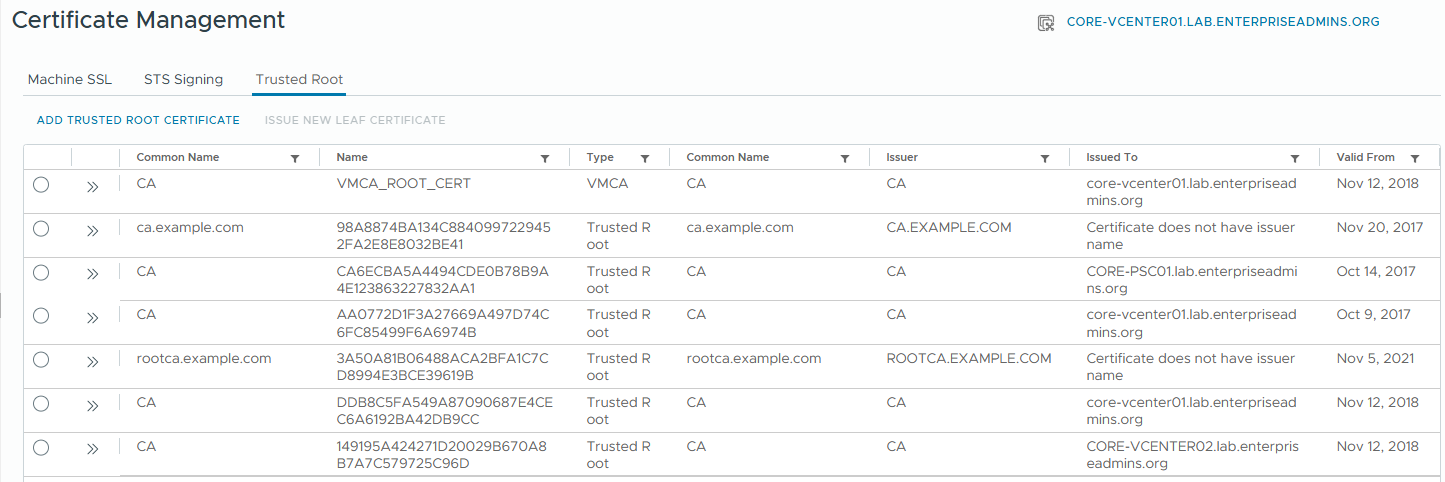
In the vCenter Server > Administration > Certificates > Certificate Management > Trusted Root tab, I can see a similar sized list of certificates. Some of these are external certificate authorities I’ve created over the years. There is an old entry for a decommissioned external PSC, and another vCenter that was once in an enhanced linked mode relationship. The certificate that I believe I need is the first one, named VMCA_ROOT_CERT. It was issued and expires on the same date as some of the other certs in that list.

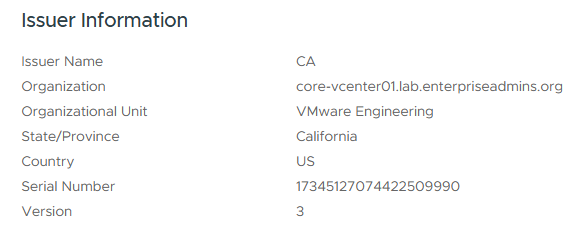
If I expand the details of the VMCA_ROOT_CERT cert, I can see a serial number which appears to be unique.

I now need to cross reference the serial numbers of the certificate files I downloaded with this specific cert that I want. Since there are a handful of files, I looked to PowerShell to help me decode each of the certificate files. This block of code:

foreach ($thisCertFile in (Get-ChildItem D:\Downloads\download\certs\win\*.crt)) {
  $thisCertSN = New-Object System.Security.Cryptography.X509Certificates.X509Certificate2($thisCertFile.FullName)
  [pscustomobject][ordered]@{
    File = $thisCertFile.Name
    CertSN = $thisCertSN.serialNumber
  }
}

Creates a listing of file names & the certificate serial number:

File           CertSN
----           ------
33356f5f.0.crt 00EA8A640D6672D7FE
5150e350.0.crt 59D71C83C3F9F48B402DAAFDECF3A063
8ff1896d.0.crt 00F0B6452CFEF6D1A6
8ff1896d.1.crt 00C0320CF0A9E111C3
b9cd01bb.0.crt 5FC56597C188F1874C86504CCE7D53ED
c99d48fd.0.crt 00E6BC43B739FADB16

Unfortunately, I don’t see the desired serial number in that list. In fact, the numbers appear to be completely different, as if the UI is showing a decimal number (numbers only) while PowerShell decoded a hexadecimal value (based on the mix of numbers and letters).

To test that out, I converted the web interface value to hexadecimal and it was F0B6452CFEF6D1A6. I do have a *D1A6 serial number in file 8ff1896d.0.crt, which confirms this is the interesting file containing the proper root certificate.

Creating the Group Policy

Its been years since I’ve worked with group policy. I created a new certificate named Trusted Root CAs. In the properties of this new certificate, I checked the box to ‘Disable User Configuration settings’. This policy will only include the desired Trusted Root CAs, which is a computer based policy, so I don’t need to include anything related to users in this policy.

I then browsed to the appropriate portion of the group policy to add these certificates:

  • Computer Configuration
  • Policies
  • Windows Settings
  • Security Settings
  • Public Key Policies

I then right clicked on Trusted Root Certification Authorities and selected Import. I then followed the wizard to import these as computer-based certificates in the ‘Trusted Root Certification Authorities’ store.

I did this for both the Windows based CA and the vCenter Server VMCA based certificate.

Testing the policy

I then linked the new policy to a test organizational unit, which only contained a single test machine. To ensure that the current policies were applied correctly, I ran the following as an administrator:

gpresult /force

I then opened the Microsoft Edge browser and attempted to connect to a vCenter Server in the separate / standalone lab environment and was not prompted with a certificate warning. I then attempted to connect to an ESXi host in my main lab, and again was not prompted with a certificate warning.

Applying setting to all systems

After testing to confirm that I had the correct root CA certificates in the policy, I linked the policy to the root of the domain. I then tested connecting to systems signed by these other roots on my primary admin jump box and did not see certificate warnings there either.

Conclusion

By centrally managing trusted root CAs through Group Policy, I’ve eliminated the certificate warnings that were slowing me down when connecting to vCenter Servers and ESXi hosts across multiple labs. This approach also ensures consistency for all domain-joined management systems without needing to import certificates manually on each machine.

Posted in Lab Infrastructure, Scripting, Virtualization | 1 Comment

Automating vCenter and Host Log Bundle Collection with PowerCLI

Manually collecting log bundles from vCenter and hosts can be repetitive and time-consuming. Here’s how I automated the process with PowerCLI. I wanted a short script that would let me pick a vCenter server, then do the other relevant tasks:

  • Export the vCenter log bundle
  • Pick any single cluster & export a log bundle from the first three hosts in the cluster

Troubleshooting: Underlying connection was closed

When I attempted to use the PowerCLI Get-Log command to generate a bundle, I was met with the error: The underlying connection was closed: A connection that was expected to be
kept alive was closed by the server.
This led me to a knowledge base article with resolved the issue:

Set-PowerCLIConfiguration -WebOperationTimeoutSeconds 2700 -Scope:User

This sets the timeout for such operations from a default 5 minutes to 45 minutes (2700 seconds). After setting the timeout for the user, I needed to exit and relaunch my powershell window for the setting to become effective.

Sample Script

The following sample script assumes you are connected to a vCenter Server to which you’d like to collect logs.

$dateString = (Get-Date).ToString('yyyyMMdd')
$newFolder  = (New-Item "D:\tmp\VCLogExport\$dateString" -ItemType Directory).FullName

Get-Log -Bundle -DestinationPath $newFolder
Get-Cluster | Get-Random -Count 1 | Get-VMHost | Sort-Object Name | Select-Object -First 3 | Get-Log -Bundle -DestinationPath $newFolder

The few lines of code will:

  • Create an output folder with the current date
  • Export a vCenter log bundle
  • Select a single cluster at random, select the first three hosts from that cluster and create a log bundle for each of them. Note: If the selected cluster has fewer than 3 hosts, fewer than 3 bundles may be created.

Conclusion

By increasing the PowerCLI timeout and using just a few lines of script, what was once a repetitive monthly manual process can now be automated and kicked off in just a few minutes. The log bundles will still take some time to generate, but this will happen in the background without attention. This approach not only saves time but also ensures consistency in how log bundles are collected for troubleshooting or archival purposes.

Posted in Scripting, Virtualization | Leave a comment