
Earlier this year, I created a post about using PowerCLI to connect to an environment that was configured for Entra ID authentication (https://enterpriseadmins.org/blog/scripting/how-to-use-powercli-with-entra-id-federated-vcenter-logins/).
I’ve recently deployed VMware Cloud Foundation 9.0.1 in a lab, and with the help of a couple of blog posts (https://williamlam.com/2025/01/vcenter-server-identity-federation-with-keycloak-identity-provider-without-scim.html and https://williamlam.com/2025/06/vcf-9-0-single-sign-on-sso-with-keycloak-idp.html) was able to setup identity broker to connect to Keycloak running in my lab.
I wanted to revisit the previous PowerCLI / Entra ID steps to see if they would work with other identity providers.
Preparation: Create OAuth2 Client (Administrator)
To begin, I logged in as administrator@vsphere.local with a password only and created a new OAuth2Client, using the following cmdlet:
$newOAuthArguments = @{
  ClientID     = 'powercli-client-Brian'
  Name         = 'PowerCLI Client - Brian'
  Scope        = @("openid", "user", "group")
  GrantTypes   = @("authorization_code", "refresh_token")
  RedirectUris = @("http://localhost:8844/authcode")
  PkceEnforced = $true
  AccessTokenTimeToLiveMinutes      = 30
  RefreshTokenTimeToLiveMinutes     = 43200
  RefreshTokenIdleTimeToLiveMinutes = 28800
}
$newClient = New-VIOAuth2Client @newOAuthArguments
This stores some useful information about our new client in a variable. We can retrieve it with:
$newClient.secretIn my case, this returns text similar to: ylBOmz5AzuHkuaW1UtwsRRcRqzYmQbH1
We will need the above ClientID and Secret to log in going forward.
Testing Federated Login with PowerCLI
In a new powershell session, we’ll use the above details to attempt to log in.
$newOAuthArguments = @{
  TokenEndpointUrl         = 'https://h417-vc-01.lab.enterpriseadmins.org/acs/t/CUSTOMER/token'
  AuthorizationEndpointUrl = 'https://h417-vc-01.lab.enterpriseadmins.org/acs/t/CUSTOMER/authorize'
  RedirectUrl              = 'http://localhost:8844/authcode'
  ClientId                 = 'powercli-client-Brian'
  ClientSecret             = 'ylBOmz5AzuHkuaW1UtwsRRcRqzYmQbH1'
}

$oauthSecContext = New-OAuthSecurityContext @newOAuthArguments
The ClientID and Client Secret were previously created in the prepare section above. The New-OAuthSecurityContext cmdlet will cause the default web browser to launch, where we log in to our IDP (Keycloak in this case).
Once the security context is created, we’ll attempt to log in to our vCenter Server with that context:
$samlSecContext = New-VISamlSecurityContext -VCenterServer 'h417-vc-01.lab.enterpriseadmins.org' -OAuthSecurityContext $oauthSecContext
Connect-VIServer -Server 'h417-vc-01.lab.enterpriseadmins.org' -SamlSecurityContext $samlSecContext
This allowed me to log in using PowerCLI and Keycloak for federated identity, using the same steps as the previous Entra ID authentication example.
Simplifying Authentication with a Wrapper Function
The above code blocks get the job done, but to make the authentication a bit easier to use in my lab, I’ve created a simple wrapper function. It includes the ClientID and ClientSecret in clear text, which is good enough for my purposes, but should probably be revisted in a real world environment. The sample wrapper function expects a host name, then asserts the client values, and causes the authentication window to appear. It then connects to the vCenter (one function instead of 3 cmdlet calls).
Function Connect-FedVIServer {
  param(
    [Parameter(Mandatory=$true, Position=0)]
    [string]$Server
  )
  $newOAuthArguments = @{
    TokenEndpointUrl         = "https://$Server/acs/t/CUSTOMER/token"
    AuthorizationEndpointUrl = "https://$Server/acs/t/CUSTOMER/authorize"
    RedirectUrl              = 'http://localhost:8844/authcode'
  }

  if ($Server -eq 'h417-vc-01.lab.enterpriseadmins.org') {
    $newOAuthArguments.ClientId     = 'powercli-client-Brian'
    $newOAuthArguments.ClientSecret = 'ylBOmz5AzuHkuaW1UtwsRRcRqzYmQbH1'
  }

  $oauthSecContext = New-OAuthSecurityContext @newOAuthArguments
  $samlSecContext = New-VISamlSecurityContext -VCenterServer $Server -OAuthSecurityContext $oauthSecContext
  Connect-VIServer -Server $Server -SamlSecurityContext $samlSecContext
}

Connect-FedVIServer h417-vc-01.lab.enterpriseadmins.org
This function could be included in a profile or common script repository, making authentication easier in the future.
Recorded Authentication Workflow
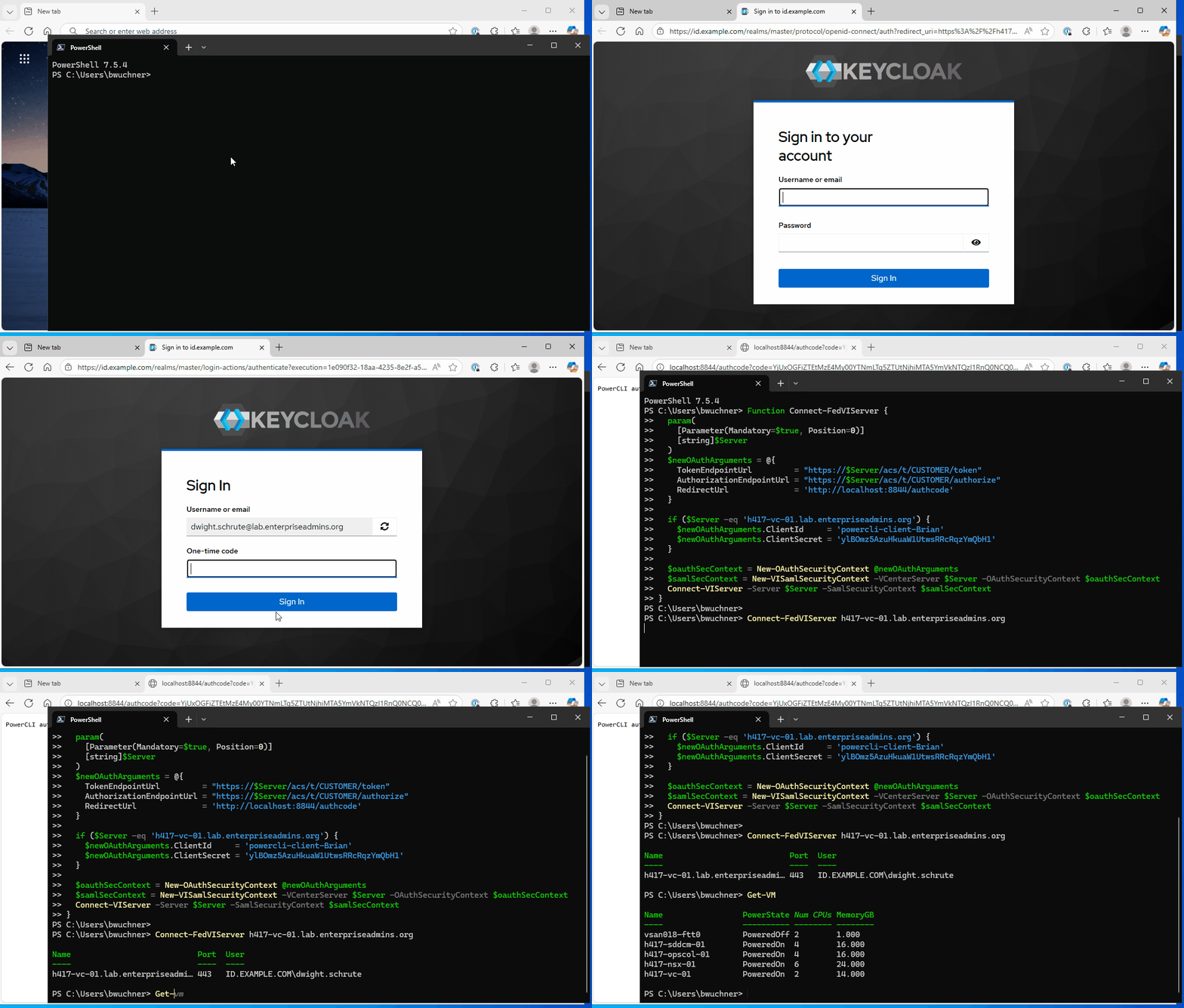
I’ve recorded this authentication workflow in a GIF which should continuously loop through the function execution, log in / OTP challenge, and vCenter connection. It then runs a Get-VM call to show that the connection was successful.
Conclusion
This exercise confirmed that the PowerCLI OAuth2 authentication workflow is not limited to Entra ID and works just as effectively with other federated identity providers, such as Keycloak. As long as vCenter Server is properly configured for identity federation and an OAuth2 client is available, the same PowerCLI pattern can be reused with minimal changes.
In VMware Cloud Foundation 9.x environments, where identity federation is increasingly common, this provides a flexible and scriptable way to authenticate without relying on local SSO credentials. Wrapping the logic into a simple helper function further reduces friction and makes federated authentication feel less different than a traditional Connect-VIServer call.
While this example focuses on a lab setup, the same approach can be adapted for production environments with additional attention paid to secret handling and client management.
Pingback: Using PowerCLI with Federated VCF 9.1 Authentication | Enterprise Admins.org