$vc = 'vc3.example.com'
# Get SessionManager Value
$sessionManagerMoid = (Invoke-RestMethod "https://$VC/sdk/vim25/8.0.1.0/ServiceInstance/ServiceInstance/content").sessionManager.value
# Login/get sessionID
$sessionId = (Invoke-WebRequest -Uri "https://$VC/sdk/vim25/8.0.1.0/SessionManager/$sessionManagerMoid/Login" -Body ( @{'userName'='Administrator@vsphere.local'; 'password'='VMware1!'} | ConvertTo-Json ) -Method:POST -ContentType:'application/json').Headers.'vmware-api-session-id'
# Get output from a specific VM
(Invoke-WebRequest -Headers @{'vmware-api-session-id'=$sessionId} -Uri "https://$VC/sdk/vim25/8.0.1.0/VirtualMachine/vm-48/config" -ContentType:'application/json').Content | ConvertFrom-JSON
The above few lines logs in to the API and returns all the details of a specific VM (specifically moref vm-48 which is passed in via the last URI). I’ve included the first few lines of the output below for reference.
_typeName : VirtualMachineConfigInfo
changeVersion : 2023-06-08T18:12:09.377525Z
modified : 1970-01-01T00:00:00Z
name : h006-vm-02
guestFullName : Microsoft Windows Server 2016 or later (64-bit)
version : vmx-15
uuid : 423f0e56-bfe2-39c5-2096-52b59fdea9b8
createDate : 2022-12-05T13:42:45.640154Z
instanceUuid : 503fd66a-4f92-950d-18fd-1ab0a4f55ff2
This is an interesting way to get JSON output of objects and can allow for integrations with newer tooling. I hope this PowerShell example is helpful.
Have you ever found yourself needing to simulate network latency or packet loss? I recently wanted to test a replication scenario but needed to have at least 15ms or so of latency between the source and destination.
Years ago I used a WANem virtual appliance as a router to do something similar. This project can be found online (https://wanem.sourceforge.net), however it appears that development has stopped, with the latest releases being nearly 10 years old. WANem provides a PHP web interface allowing the user to configure latency and packet loss, among other things. When you apply settings, the web interface issues commands to Linux Traffic Control (tc) Network Emulator (netem) to enforce those settings.
Instead of using the WANem appliance, which ships as a very old and unpatched Knoppix Linux distribution, I decided to take the command it ran and try it on an Ubuntu template available in my lab.
I created an Ubuntu VM with 2 network interfaces. One interface connected to my routable lab network using a static IP (ens192: 192.168.40.11) and the other connected to non-routable VLAN 19 that was available and was assigned another static IP (ens224: 192.168.19.1) — which would become the default gateway for this new network.
I then added the following two lines to the /etc/rc.local file on this system:
echo "1" > /proc/sys/net/ipv4/ip_forward
tc qdisc add dev ens192 root handle 1: netem delay 19ms loss 2%
The first line makes the system act as a router, the second adds 19ms of latency and 2% packet loss to traffic which passes the network interface. More configuration options for this second command can be found here: https://man7.org/linux/man-pages/man8/tc-netem.8.html, including how to send corrupt/duplicate/reordered packets — really make your WAN experience terrible. Since it is in /etc/rc.local these commands will run automatically when the system starts.
I also wanted this system to act as a DHCP server for the clients at the remote site. I did this by installing a DHCP server (apt install isc-dhcp-server), making environment specific changes to /etc/dhcp/dhcpd.conf such as DNS servers and lease-time, and also adding my new subnet with:
To activate these DHCP changes, I ran /etc/init.d/isc-dhcp-server restart.
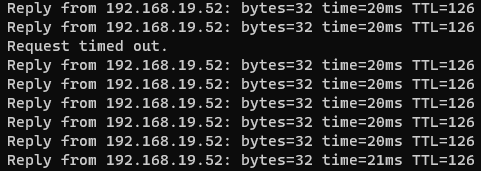
Finally I added a static route to the primary router in my lab, such that any requests for 192.168.19.0/24 go to the gateway at 192.168.40.11. Now any request in or out of my WAN site has latency injected at some occasional lost packets:
I’m now able to deploy virtual machines at a “remote location” about 19-20ms away, but actually run on the same vSphere cluster.
I recently wanted to apply some updates (OS updates and Horizon Agent) to my Ubuntu 20.04 desktop. It had been several months since I had last updated the desktop and realized the Ubuntu 22.04 had since been released. This is the current/newest Long Term Support release (https://ubuntu.com/about/release-cycle), which support going into early 2027. I decided this would be a good opportunity to build a new image that revved to the next major release.
When I last created this desktop, I switched from PBIS Open to SSSD for Active Directory authentication. At that time documentation was a little light on how to make this work with Horizon. The Horizon documentation has since been updated (https://docs.vmware.com/en/VMware-Horizon/2212/linux-desktops-setup/GUID-1E29173F-1E32-4663-92D6-788905F387E6.html) and provided better guidance for SSO. This resulted in appending an additional couple of lines to the /etc/sssd/sssd.conf file that were not in my previous notes, but are captured in the official documentation.
Firefox
I spent more time troubleshooting Firefox than I care to admit. In the previous Ubuntu 20.04 article, I updated a file (/etc/dconf/db/local.d/00-favorite-apps) to pin Firefox to the app list in the GUI. Additionally, in a previous article (https://enterpriseadmins.org/blog/lab-infrastructure/installing-windows-ca-root-certificate-on-linux-and-firefox/) I had described a process to create a Firefox policy to install a specific CA certificate used in my lab. Ubuntu 22.04 switched to a newer snap installer for Firefox and this change had an impact on both of these settings. I tried a couple of different troubleshooting steps, such as moving the policy file to /etc/firefox/policies, changing file permissions, moving the certificate file, but wasn’t able to find a quick path to resolution. I ended up finding an article to revert back to the way Firefox was installed in Ubuntu 20.04. That process is outlined here: How to Install Firefox as a .Deb on Ubuntu 22.04 (Not a Snap) – OMG! Ubuntu! (omgubuntu.co.uk). For reference, I’m going to include the partial list of commands that I implemented (since this is a non-persistent desktop I opted out of the step 4 from the original article that keeps Firefox up to date).
Overall I was pleasantly surprised that this process worked like it did before. I recall the process going from Ubuntu 18.04 to 20.04 to be much more time consuming. I now have a non-persistent Linux pool, with the latest release of Ubuntu LTS, and a slightly better SSO experience than I previously accepted. Hopefully these notes & previous post links will assist if you plan on setting up a similar desktop.
The Skyline Collector 3.3 release [release notes] recently added support for vRealize Log Insight / Aria Operations of Logs to the Skyline platform. As described in the release notes, only local authentication is supported in this release. I had not created a local user in vRealize Log Insight before, so this post will describe the process of where/how to complete this process.
Step 1:
In Log Insight, select Configure > SMTP Server and confirm that SMTP email configuration is defined for sending mail. If you need an easy SMTP server for your lab, check out the inbucket docker container, which is described in a previous post.
This will send an email to the address provided with a link that can be used to set the password for this user.
Step 3:
Check email provided for this new user and use the included link to set the account password.
Step 4:
Login to Skyline Collector 3.3 appliance. Click Configuration > Products > vRealize Log Insight > Add vRealize Log Insight. Enter your Log Insight hostname (or VIP) and the credentials for the user you configured in step 2. Remember, this username is case sensitive.
After a few minutes you should see a green check next to your new endpoint configuration. You can then check the Skyline Advisor in a few hours to confirm that everything is visible as expected.
My homelab has a small UPS to help carry through short power ‘blips’ that occur from time to time — it is not sized for prolonged outages. As such, I don’t have any automation to detect/respond to these on battery events. Recently some storms rolled through, causing a power outage long enough that everything in the lab powered down hard. This has happened to me before and I always learn something from the recovery efforts. This post will recap some of the latest lessons learned.
Lesson #1: VMFS locking
My lab has one ESXi host that I like to consider a ‘disaster recovery’ host. I try to limit any sort of external dependencies, it uses standard virtual switches, local disk, etc. and only runs a few VMs, like a secondary domain controller / DNS server, backup target for VCSA backups, and the repository for a backup system. When I’m powering things up, this is the first host that I bring online and I power on these VM guests before any others. However, this time powering on a guest resulted in a “Failed to power on virtual machine dr-control-21. Insufficient resources.” error message. I tried another VM on the same host/storage and received the same error. I tried a few initial troubleshooting steps:
Reboot host.
Confirm memory/CPU counts match expected values to rule out resource failure.
Verified host licensing wasn’t expired.
SSH to host and manually create/delete files from VMFS datastore.
Attempt to power on a VM on a different disk on the same host — success.
All of these steps checked out okay, so next I went to the vmkernel.log file and watched it as I tried to power on a VM on this specific SSD. I included a few entries from that log below:
2023-02-28T14:34:49.190Z cpu0:265717)WARNING: SwapExtend: 719: Current swap file size is 0 KB.
2023-02-28T14:34:49.190Z cpu0:265717)WARNING: SwapExtend: vm 265717: 727: Failed to extend swap file. type=regular from 0 KB to 10240 KB. currently 0. status=Busy
2023-02-28T14:45:44.724Z cpu1:264688 opID=44d4b0b6)Fil6: 4094: 'dr-esx-31_ssd': Fil6 file IO (<FD c17 r6>) : Busy
2023-02-28T14:45:44.724Z cpu1:264688 opID=44d4b0b6)Fil6: 4060: ioCtx: 0x454917beddc0, world: 264688, overallStatus: Lost previously held disk lock, token: 0x0, tokenStatus: N, txnToken: 0x0, txnTokenStatus: N, totalIOSize: 3761, maxIOLength: 3761
My next thought was that the physical SSD drive had failed. This is a consumer grade device that has been running 24×7 for years, so failure wouldn’t be a huge surprise. To check this, I found the ID of the disk using esxcli storage core device list. I then checked the physical disk with the following command:
esxcli storage core device smart get -d t10.ATA_____WDC_WDS500G1B0B2D00AS40__________________163763421472________
This returned a table that showed no fail or error counts for the disk, suggesting that it was physically healthy. I then remembered a tool that I haven’t used before, vSphere On-disk Metadata Analyzer (voma) described here: https://docs.vmware.com/en/VMware-vSphere/7.0/com.vmware.vsphere.storage.doc/GUID-6F991DB5-9AF0-4F9F-809C-B82D3EED7DAF.html. I was at a point where I assumed these VMs were lost and would need rebuilt anyway, so why not give this a try first? I removed the VMs on this disk from inventory and rebooted the host so that everything would be as clean as possible. I then ran voma to check VMFS with the following syntax:
Phase 1: Checking VMFS header and resource files
Detected VMFS-6 file system (labeled:'dr-esx-31_ssd') with UUID:5f80a2f2-d98ebf77-71a5-b8aeed72cacf, Version 6:82
Found stale lock [type 10c00003 offset 153174016 v 10, hb offset 3440640
gen 247, mode 1, owner 612cc20b-2b16ed7f-e19d-b8aeed72cacf mtime 264072
num 0 gblnum 0 gblgen 0 gblbrk 0]
Found stale lock [type 10c00003 offset 153214976 v 8, hb offset 3440640
gen 7, mode 1, owner 5f80a174-7a6f9c7f-4a06-b8aeed72cacf mtime 2375897
num 0 gblnum 0 gblgen 0 gblbrk 0]
Found stale lock [type 10c00003 offset 287481856 v 6, hb offset 3440640
gen 7, mode 1, owner 5f80a174-7a6f9c7f-4a06-b8aeed72cacf mtime 2375696
num 0 gblnum 0 gblgen 0 gblbrk 0]
<redacted to save space>
Phase 3: Checking all file descriptors.
Found stale lock [type 10c00001 offset 71827456 v 5688, hb offset 3440640
gen 609, mode 1, owner 63fdfacc-c6c0eb27-c5e2-b8aeed72cacf mtime 2147
num 0 gblnum 0 gblgen 0 gblbrk 0]
Found stale lock [type 10c00001 offset 80044032 v 2493, hb offset 3440640
gen 239, mode 1, owner 60d0b4b3-52c8ad5d-fce9-b8aeed72cacf mtime 1643
num 0 gblnum 0 gblgen 0 gblbrk 0]
<redacted to save space>
Total Errors Found: 2
The stale lock errors did seem to align with the second set of vmkernel logs included above. I went ahead and ran the command in fix mode with the syntax:
Once complete I re-ran the check. It still showed one error (down from the origional 2), but the stale lock entries were no longer present. I re-registered the VMX files that I had previously removed, and great news — the affected VMs could be powered on!
The lesson here was a reminder to be patient when troubleshooting. Start with the easiest steps first, keep notes on what has been tried, and that logs are your friend. Also, in the real world, avoid having your disaster recovery and production environments share the same power feed.
Lesson #2: Its always DNS
While troubleshooting the VMFS issue above, I decided to power on other pieces of my lab, a Synology NAS and the hosts in my main ESXi cluster. This is different from my normal order of operations, as I normally wait for the ‘disaster recovery’ VMs to come online first. However, I didn’t know how long it would take to resolve that issue, and was thinking a rebuild of the backup domain controller / DNS server was going to be required. Promoting a new/replacement domain controller was going to require that the primary system come online anyway.
I waited an unusually long time for the clustered ESXi hosts to boot. I could ping them, but wasn’t able to reach the web interface to login. After awhile I gave up, powered one system off completely and focused on getting just one online. I power cycled that other system and gave it 10-15 minutes to boot… but still nothing. This host would normally power up in 3-5 minutes, so something else was wrong. I powered off the host again and rearranged gear so I could connect an external monitor. I powered on the system, and to my surprise ESXi was actually booting — I had assumed that there was going to be an error onscreen early in the boot process. I pressed ALT+F1 to watch the boot process. I was distracted for a bit, but when I looked back I finally saw the culprit causing my delay and was able to grab a picture:
ESXi boot process showing nfs-volumes with delay
The process to bring my nfs-volumes online had a significant delay, over 30 minutes. I had not encountered this before, and immediately assumed something was wrong with my NAS. I logged in to its UI and everything looked healthy, and I was able to connect to an NFS mount as a test… so the NFS target wasn’t the cause of my problem. Since I finally waited long enough for the ESXi host to boot, I went to the command line and attempted to ping the IP addresses of the NAS, thinking I had a network connectivity / VLAN problem on my ESXi host facing switch ports. The vmkping commands worked without issue. Then it hit me. The VMFS issue described above prevented my disaster recovery DNS server from coming online, so when these ‘production’ hosts came online, they were not able to resolve the _name_ of my NFS server, and my NFS datastores were likely mounted by hostname, not IP address. I went to edit my ESXi hosts /etc/hosts file to test this theory, but noticed a line that said #Do not modify this file directly, please use esxcli. I checked the esxcli syntax and found the command I needed:
esxcli network ip hosts add --hostname=core-stor02.lab.enterpriseadmins.org --ip=192.168.56.21
I confirmed the /etc/hosts file included the expected entry after running the command. I then rebooted the ESXi host — it came back online quickly, datastores were present, and VMs appeared. Everything powered on as expected.
Lesson learned. My ‘production’ hosts were actually dependent on name resolution being provided by the disaster recovery environment. I’ve added this host file entry on both of my management hosts (where primary DNS runs) so that I don’t encounter this issue again.
Lesson #3: Documentation is important
I was lucky in that I remembered hostnames/IP addresses used in my lab. If this were a larger environment, with more admins each knowing just their piece of the puzzle, this could have been much harder to recover. Some regular documentation of how things are setup, such as the output from an AsBuiltReport would have been valuable for this environment — especially if that output was store outside of the lab. In my case I had some documentation stored on the filesystem of a VM on my disaster recovery host — and that VM was impacted by the VMFS issue as well. Going forward, I may try to send similar report output to a third party repository every month so that it is stored completely outside of the lab it is documenting.