
Setup VSAN without vCenter using PowerCLI

Recently @RuddyVCP (Blog | Twitter) and I worked on building a home lab to give away at the 2015 Indianapolis VMUG UserCon. The idea was we’d build a three node VSAN cluster using Intel NUC miniature PCs each with a 1TB 7200 RPM SATA disk and a 256GB M.2 SSD. Between Kyle and I we have plenty of content for a series of blog posts, as this was a much more challenging project than either of us initially assumed.

Today I want to write about the VSAN install, as it was part of a chicken vs. egg type discussion. Normally one would setup VSAN on a cluster from within vCenter. However, in our day-zero deployment we did not have a working vCenter yet, or a place to deploy the vCenter server. All of the local disks inside the NUCs needed to be claimed by the VSAN (three nodes with one SSD and one spinning disk are the bare minimum for VSAN), so we couldn’t use one of those disks as a temporary home for vCenter either. The catch was without vCenter we also couldn’t deploy VSAN… or could we? How can you setup VSAN without vCenter?

Our Technical Account Manager @eck79 (Blog | Twitter) pointed us at this gem of a document for just such an occasion. It covers using the shell to do just that — setup VSAN without vCenter for day-zero deployments: https://www.vmware.com/files/pdf/products/vsan/VMware-TechNote-Bootstrapping-VSAN-without-vCenter.pdf

This document is great… it covers the basics of VSAN and includes bootstrapping instructions using esxcli over SSH. I wanted to do a bit of testing to see if I could make this work from within PowerCLI. Here is some sample code that I tested on a handful of NUCs to do just that — enable VSAN without vCenter using PowerCLI.

Set-PowerCLIConfiguration -DefaultVIServerMode:Multiple -InvalidCertificateAction:Ignore -Confirm:$false

Connect-VIServer 192.168.1.31,192.168.1.32,192.168.1.33 -User root -Password My#1Passwo
Get-VMHostNetworkAdapter -Name vmk0 | Set-VMHostNetworkAdapter -VsanTrafficEnabled:$true -Confirm:$false

Get-VMHost | Sort Name | %{
$vmh = $_
$luns = Get-ScsiLun -VMHost $vmh -LunType disk | ?{$_.IsLocal -eq $true -AND $_.CapacityGB -gt 32} | select CanonicalName, @{N="SSD";E={$_.ExtensionData.Ssd}}, CapacityGB
$dataLun = ($luns | ?{$_.ssd -eq $false} ).CanonicalName
$ssdLun = ($luns | ?{$_.ssd -eq $true} ).CanonicalName

$thisEsxCli = $vmh | Get-EsxCli
$thisEsxCli.vsan.storage.add($dataLun,$ssdLun)

# On the first pass we need to get a new UUID, future passes will reuse the existing value
if (!$newVsanUUID) {$newVsanUUID = $thisEsxCli.system.uuid.get()}
$thisEsxCli.vsan.cluster.join($newVsanUUID)
}

$thisEsxCli.vsan.cluster.get()

Lets break this code down a bit. In the first couple of lines we are connecting to all three of the NUCs (which are already running ESXi 6.0). We then enable VSAN traffic on the existing management network/vmk0 interface. We could easily have created a new portgroup/vmkernel interface, perhaps on its own VLAN, but to keep this simple I used the existing interface. When using unsupported hardware, best practices take the backseat.
We then loop through all the hosts (the three we have connected to earlier) and for each host we select the pair of local disks. The where-object statement that picks out devices larger than 32GB is just excluding the USB drive that contains the boot image. Once we have the disks, we use Get-EsxCli to claim them for VSAN. Finally we use the first host in the loop to generate a new UUID for the VSAN cluster (subsequent hosts will reuse this value) and we add the hosts to the VSAN cluster. Pretty snazzy. Here are some screenshots showing some of the various output.

Here is where we enabled the VSAN traffic on each host:
Enable VSAN traffic

Here you’ll see the code block that is selecting the disks, claiming them for VSAN (one true return per host) and then adding the host to the VSAN cluster (another true return for each host).
Host EsxCli loop code block with 6 true returns

Here you can see the status of the cluster is healthy.
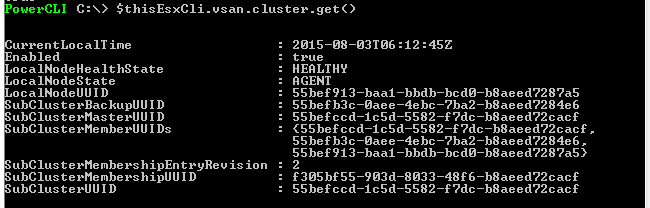
esxi vsan cluster get at the very end

And finally, a screenshot showing the datastore is present — it appears three times, once per host.

Get-Datastore

Posted in Scripting, Virtualization | Leave a comment

A missing folder, a missing day

I recently moved some scheduled tasks from a Windows 2008R2 server to a Windows 2012R2 server. This should be the easy type of work: copy some files, enter some credentials, move on to another project. But as luck would have it, An exception occurred. Those three words.

One of the scheduled tasks uses a COM object to access Visio.Application. The script enumerates a listing of Visio diagrams, sees if they are newer than a static version on a web server and if so runs SaveAsWeb for each new document. After moving to a new server the ‘An exception occurred.’ error kept showing up for each document being published when the script ran as a scheduled task. Running the script interactively worked fine. A bunch of searching kept pointing at dcomcnfg, specifically for an entry named Visio Document and/or Microsoft Office Visio Document. This option did not show up for me. I even re-installed Visio and rebooted hoping to re-register the COM object. When I was just about ready to give up, I found this simple article, with a comment all the way at the end:

You need to ensure that the folder C:\Windows\System32\config\systemprofile\Desktop exists. It’s the same when you try to automate Word in a service.

Could it really be that simple? Would creating one folder solve the day long project? The answer — yes. I browsed to C:\Windows\System32\config\systemprofile and created a folder named Desktop. The scheduled task now works fine on the new server. One missing folder, one missing day in troubleshooting a simple task.

Posted in Scripting | Leave a comment

Moving to XtremIO (or any other array)

I was recently asked to help move VMs from one datastore backed by traditional spinning disk to an EMC XtremIO datastore.  I was really excited as I wanted to see the power of an all flash array.

As a best practice, most all flash vendors recommend using their own multipathing software (PowerPath/VE) or round robin. In this environment, the customer choose to go with RoundRobin. This is pretty easy to do in the GUI, but you need to do it for each device and on each host in a cluster.  Not to worry, PowerCLI is willing to help.  The following code will find all XtremIO LUNs not currently set to RoundRobin and change them.

Get-VMHost "esx-cl3-*" | Get-VMHostHba -Type "FibreChannel" |
Get-ScsiLun -LunType "disk" |
where {$_.MultipathPolicy -ne "RoundRobin" -and $_.Vendor -eq 'XtremIO'} |
Set-ScsiLun -MultipathPolicy RoundRobin

Once we have the new datastores all prepared and ready to go, we can start moving virtual machines. In the customers environment, two different clusters of ESXi hosts shared a common set of datastores. As part of this migration, the customer wanted to dedicated datastores to each cluster (removing their cross cluster datastores). Again, PowerCLI was willing to help. In the following code, we will move all of the virtual machines from MyOldDataStore that are on a host whose name matches esx-cl3. We will sort the virtual machines by name, just for tracking purposes and kick out an email when the process is complete (just so we don’t have to babysit the process):

Get-Datastore MyOldDataStore | Get-VM | ?{$_.VMHost.Name -match 'esx-cl3'} | Sort Name | %{
write-host "$($_.Name) will be moved to XtremIO..." -NoNewline
[void]( $_ | Move-VM -Datastore xtrem-cl3-vol1 -DiskStorageFormat:EagerZeroedThick )
Write-Host " done!"
}
Send-MailMessage -To 'notify@mydomainname.com' -Subject "Done with CL3 group" -From 'notify@mydomainname.com' -SmtpServer 'smtp.mydomainname.com'

That was pretty easy, and now the VMs will benefit from the consistent low-latency of an all flash array. Now you probably need some help managing and monitoring your array. Fortunately the team over at vNugglets have you covered. Check out their latest post at http://www.vnugglets.com/2014/04/xtremio-powershell-module-report-on.html. It is a fantastic module and really worth checking out.

Posted in Scripting, Virtualization | Leave a comment

Lack of posts

I realized today that I hadn’t posted anything new since December. That’s four full months without a post… normally I would have averaged a dozen posts in this period of time. A few things have contributed to to this lack of posting.

  • Working on projects that really lack code worth sharing.  There were a few tips/tricks I picked up specifically around making graphical user interfaces with SAPIEN PowerShell Studio (that I plan to share soon) but overall the projects focused on solving very specific problems that don’t share well.
  • Book reviews.  I had the opportunity to review several vSphere related books for Packt Publishing.  This was an interesting project, but consumed some of the free time I used for blogging. I plan on posting reviews of these books soon.
  • A career change.  I accepted a promotion from a technical to managerial role.  This has been more of a change that I had anticipated and adjusting to the new demands has consumed some time.

Anyway, enough with excuses.  I have a few post ideas lined up and hope to have them out the door in the next few weeks.  Check back soon!

Posted in Scripting | Leave a comment

Migration to Office 365/Exchange Online

I recently had a chance to help a small business move their 70 mailboxes to the Exchange Online service. This company was running Windows 2008 with Exchange 2007 on premises installation and we helped them migrate to Office 365/Exchange Online over a couple weekends. During the migration we ran into several issues. I couldn’t find many online resources where people documented these errors, so I wanted to write them down on this site.

Issue #1
Symptoms:
Outlook Anywhere (RPC over HTTPS) service was configured, running and available to end users. However we received various errors when trying to establish a migration endpoint. Even though the service was working, the Remote Connectivity Analyzer (https://testconnectivity.microsoft.com/) was failing on Outlook Anywhere tests.
Resolution:
Looking around online, we thought the issue was related to the Exchange 2007 service pack level, so we upgraded to SP3. I’m not sure if this actually helped, but I figured it was worth mentioning as it may have fixed other issues we could have seen during the migration. The actual fix for this issue (and unfortunately I can’t find the Office 365 communities post where we found the suggestion) was to create a hosts file entry on the exchange server containing the IP, server name and FQDN of the internal Exchange server name. DNS was working perfectly, so I’m not sure why this was needed. However, after the entry was added the Remote Connectivity Analyzer tests started working and we were able to move forward with the migration.

Issue #2
Symptoms:
Batch loaded into Office 365 environment to begin migration, but after several hours the task fails
Error log may mention “MigrationPermanentException: Error: MapiExceptionLogonFailed: Unable to make connection to the server”
Resolution:
Verify permissions, specifically Receive-As rights to the database (http://community.office365.com/en-us/forums/158/t/18911.aspx).

Add-ADPermission -Identity "Mailbox Store" -User "Trusted User" -ExtendedRights Receive-As

Issue #3
Symptoms:
When opening Outlook as a user when the PC is joined to the domain, the on premises mailbox is opened instead of the Office 365 mailbox. When using a non-domain joined test PC, the Office 365 mailbox was opened.
Resolution:
This was caused by the way Exchange handles autodiscover. You can read more about the process here: http://msdn.microsoft.com/en-us/library/office/jj900169(v=exchg.150).aspx. We found a pair of scripts (ExportO365UserInfo.ps1 and Exchange2007MBtoMEU.ps1) available here: http://community.office365.com/en-us/wikis/exchange/845.aspx which allow you to convert the users active directory account into a mail enabled user that references Office 365 instead of a mailbox user in the on premises install.

This was my first experience with Office 365/Exchange Online. I was surprised at how complicated some of the migration steps were. With the whole ‘cloud-based’ self service model, I assumed that the migration path would be just a few clicks. With the handful of lessons learned from going through this process once, I would feel more comfortable doing another migration (but its not something I would volunteer for). I hope someone finds this post helpful.

Posted in Messaging, Scripting | 3 Comments