The VCF PowerCLI 9.1 release notes call out an interesting change to the Connect-VIServer cmdlet (https://techdocs.broadcom.com/us/en/vmware-cis/vcf/vcf-9-0-and-later/9-1/release-notes/vmware-cloud-foundation-9-1-0-0-release-notes/what-s-new/whats-new-vcf-cli-api-sdk/vcf-powercli-changelog/vmware-vimautomation-core.html)
Connect-VIServer
– Added parameter ‘VcfApiToken’
– Added parameter ‘VcfOAuthSecurityContext’
This change introduces native support for API token authentication in federated VCF environments, making non-interactive automation significantly easier than previous SAML-based approaches.
In a prior post (https://enterpriseadmins.org/blog/scripting/how-to-use-powercli-with-federated-vcenter-logins/), I wrote about using a -SamlSecurityContext parameter to login to a vCenter that had been configured with federated identity. That approach required additional setup using a non-federated user in PowerCLI and only supported interactive browser-based authentication.
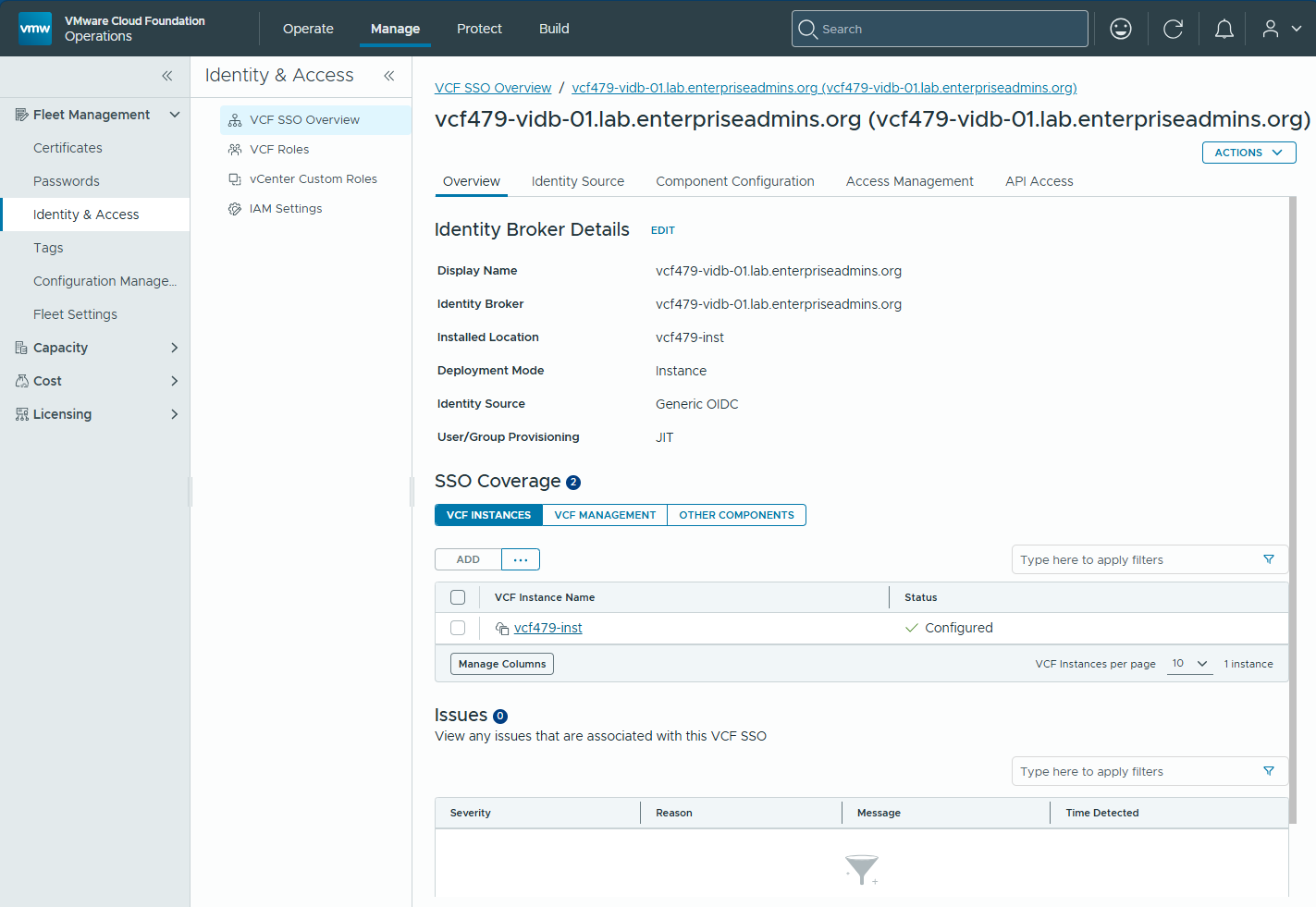
This post will focus on using the latest Connect-VIServer cmdlet to connect to a VCF 9.1 vSphere instance. In this environment, an Identity Broker has already been configured using generic OIDC and the VCF Instance is configured to use the SSO provider. Here is a screenshot of the overview page confirming this configuration:
Creating an API Client and Token
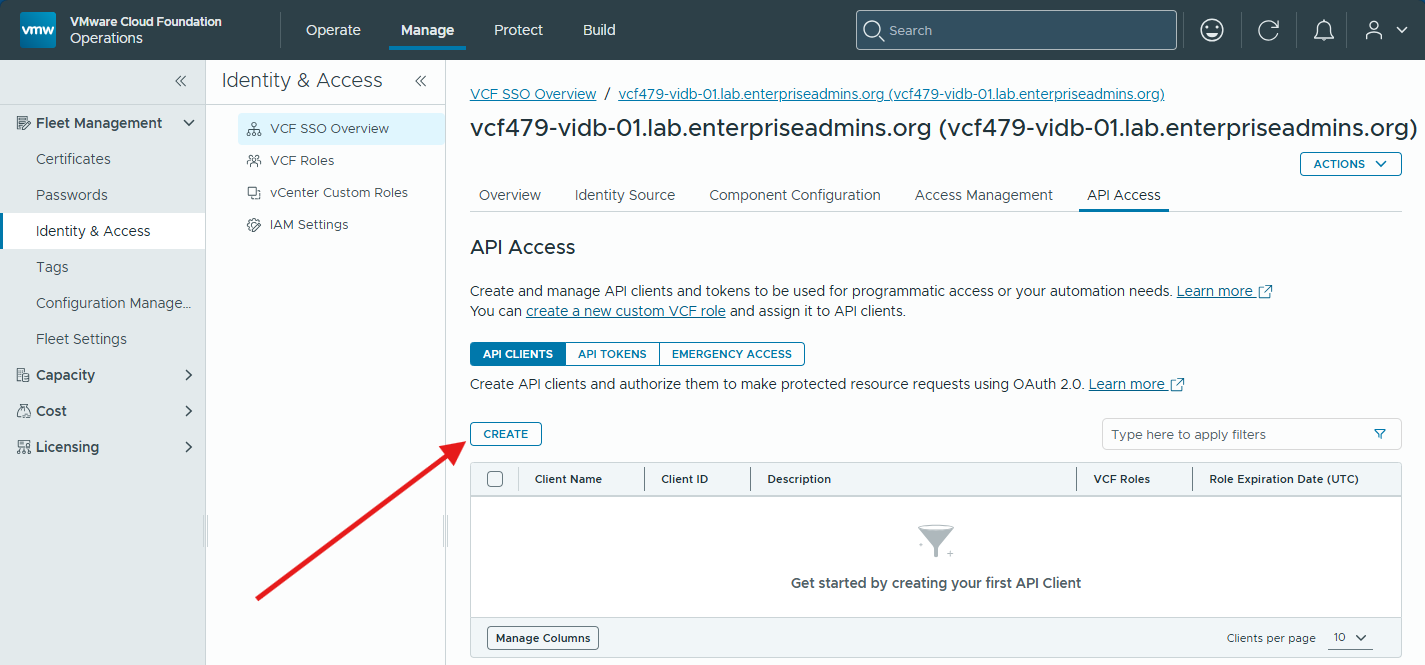
In the screenshot above, we can see an ‘API Access’ tab. From here we can create API Clients and API Tokens. We’ll start by selecting create on the ‘API CLIENTS’ sub tab.
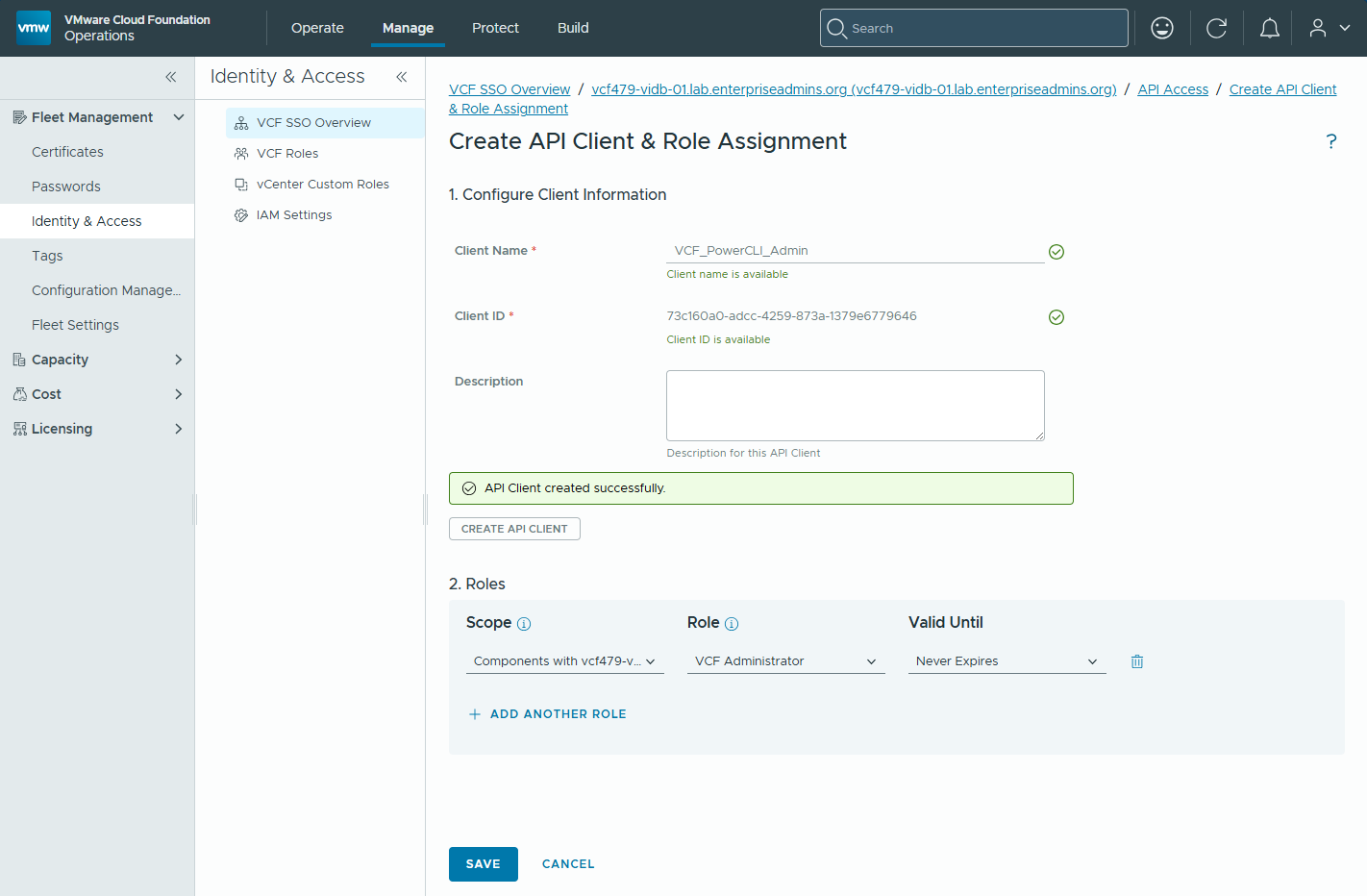
For Client Name, I’ll enter VCF_PowerCLI_Admin and then select ‘CREATE API CLIENT’. In Roles, I’ll set the scope to be Components with vcf479-vidb-01 and for role will select VCF Administrator. I’ll finally select SAVE on this page.
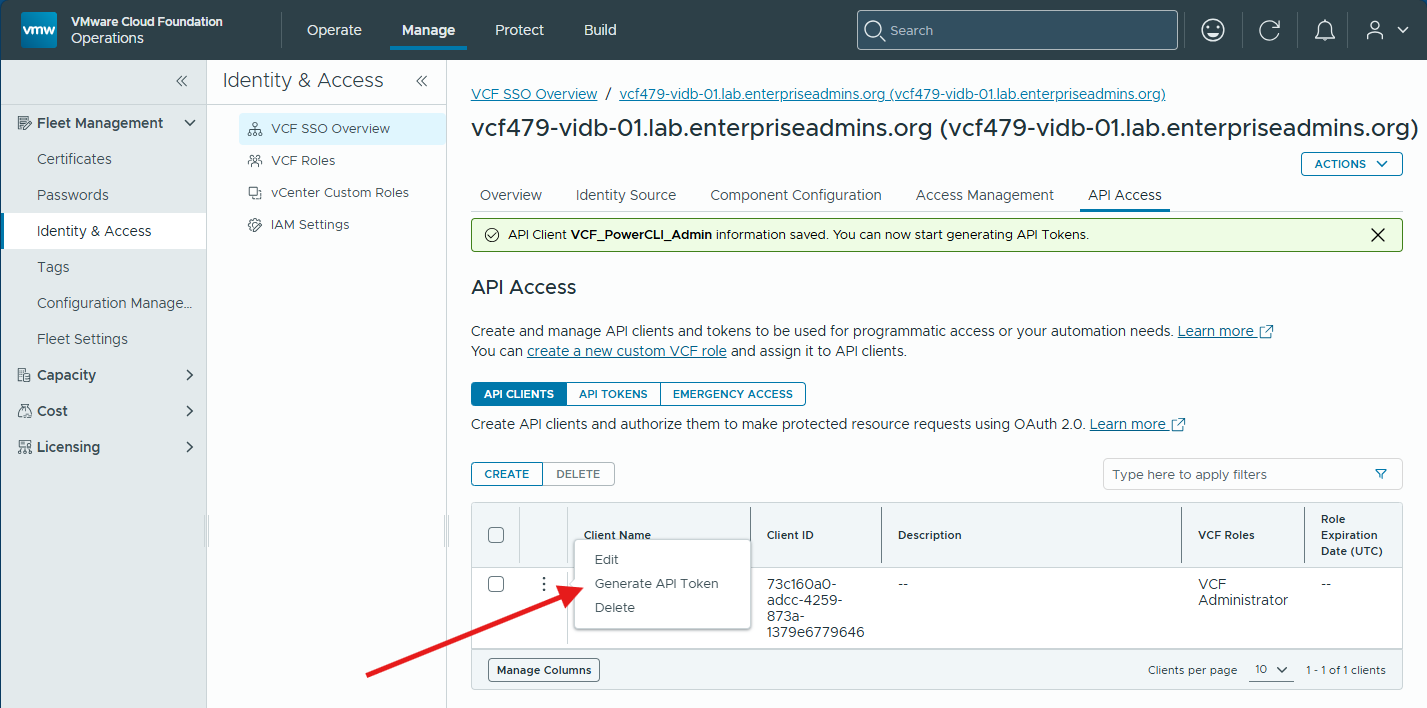
With the API Client created, I’ll select the vertical ellipsis and then ‘Generate API Token’.
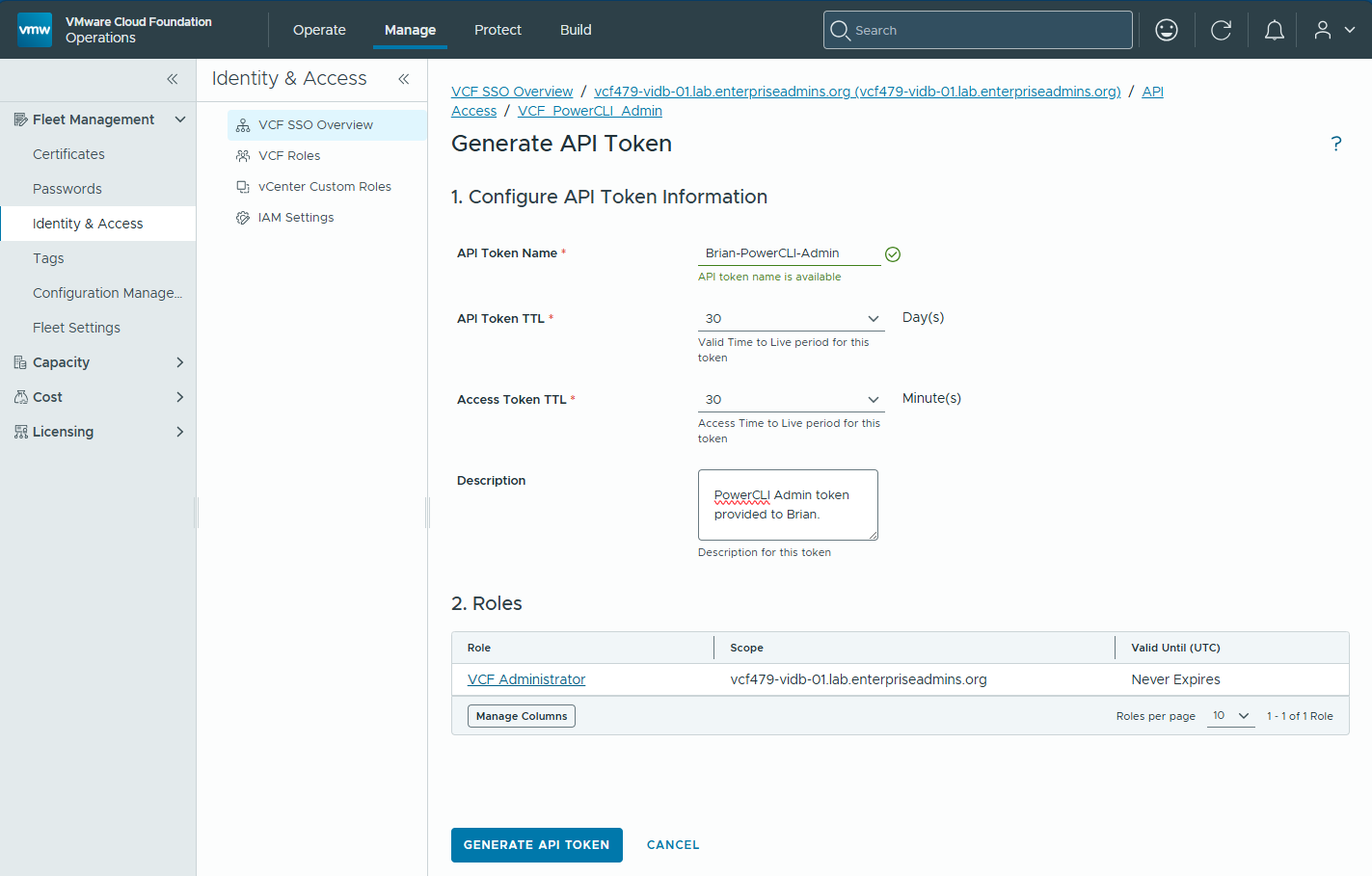
For the ‘API Token Name’ I’ll provide Brian-PowerCLI-Admin and click ‘Generate API Token’.
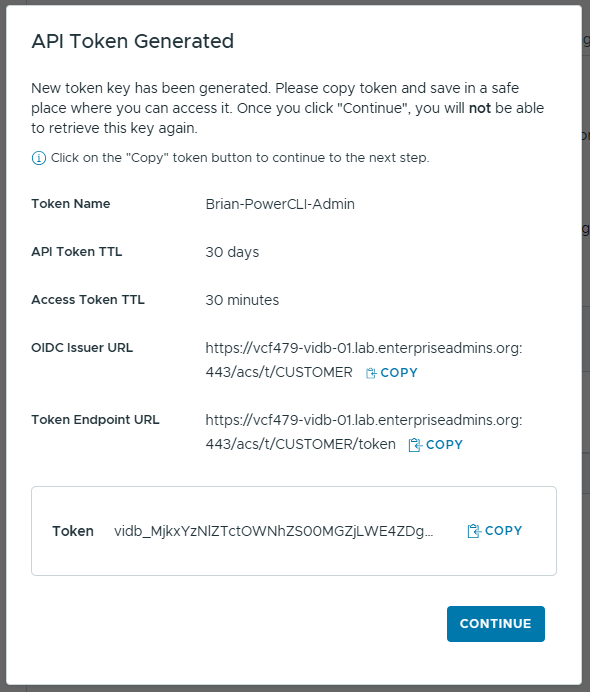
This will provide a summary of the token generated. I will not be able to continue until I’ve copied the token value.
Connecting with PowerCLI
The release notes called out two options for authentication. Here is where I believe each of these options would be appropriate.
| Method | Use Case |
-VcfApiToken | Simple direct login to vCenter |
-VcfOAuthSecurityContext | Reusing authentication across multiple VMware products |
We will demo both of these options below.
VcfApiToken parameter
This is a very straightforward option. When you pass the token, VCF PowerCLI automatically discovers the associated VCF SSO instance in the background and completes the login process. After connecting to vCenter, I’ll retrieve a list of VMs to confirm that the connection is working.
PS C:\> Connect-VIServer vcf479-vc-01.lab.enterpriseadmins.org -VcfApiToken 'vidb_MjkxYzNlZTctOWNhZS00MGZjLWE4ZDg<redacted>'

Name                           Port  User
----                           ----  ----
vcf479-vc-01.lab.enterprise... 443   CUSTOMER\73c160a0-adcc-4259...


PS C:\> Get-VM

Name                 PowerState Num CPUs MemoryGB
----                 ---------- -------- --------
vcf479-license-01    PoweredOn  2        4.000
vcf479-opscol-01     PoweredOn  4        16.000
vcf479-ops-01        PoweredOn  4        16.000
vcf479-nsx-01        PoweredOn  6        24.000
vcf479-sddcm-01      PoweredOn  4        16.000
vcf479-vsp-01-c8bmk  PoweredOn  12       24.000
vcf479-vsp-01-rnn58  PoweredOn  12       24.000
vcf479-vsp-01-7zdvf  PoweredOn  12       24.000
vcf479-vsp-01-2dcws  PoweredOn  4        10.000
vcf479-vc-01         PoweredOn  4        21.000
VcfOAuthSecurityContext parameter
When using the VcfOAuthSecurityContext parameter, the IdentityBrokerHostname is also required.
PS C:\> $vcfOauthSec = New-VcfOAuthSecurityContext -IdentityBrokerHostname 'vcf479-vidb-01.lab.enterpriseadmins.org' -ApiToken 'vidb_MjkxYzNlZTctOWNhZS00MGZjLWE4ZDg<redacted>'
PS C:\>
PS C:\> Connect-VIServer vcf479-vc-01.lab.enterpriseadmins.org -VcfOAuthSecurityContext $vcfOauthSec

Name                           Port  User
----                           ----  ----
vcf479-vc-01.lab.enterprise... 443   CUSTOMER\73c160a0-adcc-4259...


PS C:\> Get-VM

Name                 PowerState Num CPUs MemoryGB
----                 ---------- -------- --------
vcf479-license-01    PoweredOn  2        4.000
vcf479-opscol-01     PoweredOn  4        16.000
vcf479-ops-01        PoweredOn  4        16.000
vcf479-nsx-01        PoweredOn  6        24.000
vcf479-sddcm-01      PoweredOn  4        16.000
vcf479-vsp-01-c8bmk  PoweredOn  12       24.000
vcf479-vsp-01-rnn58  PoweredOn  12       24.000
vcf479-vsp-01-7zdvf  PoweredOn  12       24.000
vcf479-vsp-01-2dcws  PoweredOn  4        10.000
vcf479-vc-01         PoweredOn  4        21.000
We can use this authenticated security context to connect to other products, such as VCF Operations, which do not provide direct VcfApiToken properties. For example, using the $vcfOauthSec variable created above, I can also connect to the operations instance:
Connect-VcfOpsServer vcf479-ops-01.lab.enterpriseadmins.org -VcfOAuthSecurityContext $vcfOauthSecConclusion
PowerCLI 9.1 significantly simplifies authentication to federated VCF 9.1 environments.
Compared to previous SAML security context workflows, the new API token and OAuth security context capabilities reduce setup complexity while enabling fully non-interactive authentication. This makes PowerCLI automation easier to integrate with scheduled tasks, orchestration platforms, and CI/CD pipelines.
For simple vCenter connections, -VcfApiToken provides the most straightforward experience. For broader multi-product workflows, -VcfOAuthSecurityContext enables authentication reuse across the environment.