A customer recently asked me a question about vSphere Lifecycle Manager (vLCM) image updates on a standalone ESXi host. It’s a good one, and the documentation didn’t completely answer it.
The Question
Their manual patching workflow looked like this:
- Right-click each VM > Power > Shut Down Guest OS
- Wait for all VMs to finish shutting down
- Remediate the host
- Power the VMs back on
They wanted to know whether vLCM could handle this for them. In the image remediation settings, the VM power state options are:
- Do not change power state (default)
- Suspend to disk
- Suspend to memory
- Power Off
Power Off looks like the match, but the name is ambiguous. In vSphere, “Power Off” and “Shut Down Guest OS” are two different operations. Power Off is the equivalent of pulling the plug. Shut Down Guest OS asks VMware Tools to cleanly shut down the operating system. So which one does vLCM use?
The documentation lists the four options but doesn’t clarify what Power Off does under the covers.
The Lab Test
I tested it rather than guess. I created three VMs on a standalone ESXi host to cover the common VMware Tools scenarios I’d expect in the real world:
| VM | VMware Tools state |
|---|---|
| h510-tc-01_NoTools | Not installed |
| h510-tc-02_WithTools | Current and running |
| h510-win-01_OldTools | Outdated, but running |
We can see the VMware Tools Running Status in the table below:
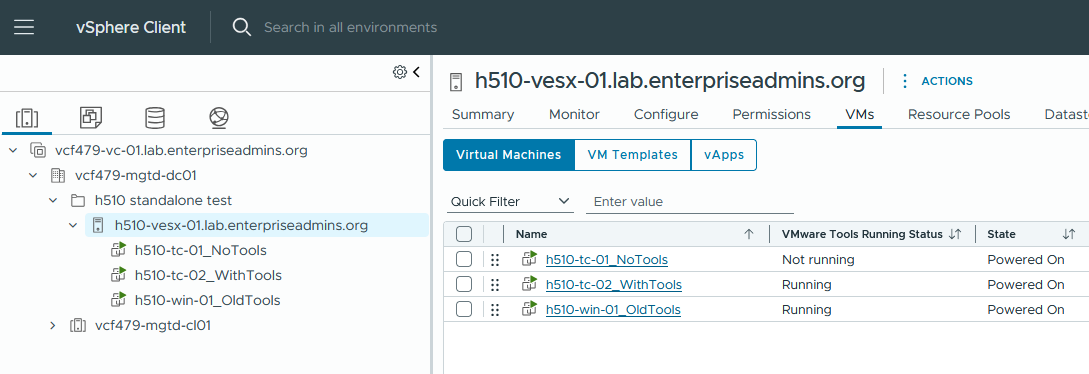
I set the remediation power state option to Power Off and started remediation of the host with an image update from 9.1.0 to 9.1.1.
What Happened
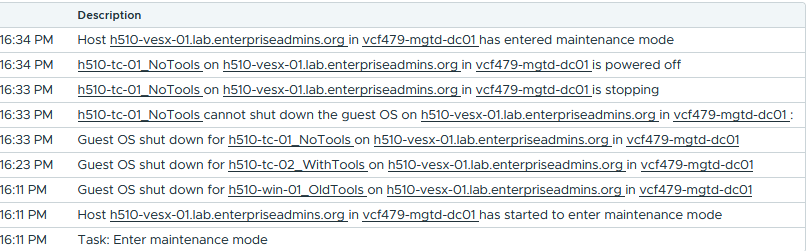
The Enter maintenance mode task and its related events show what vLCM is doing. Here’s the sequence.
1. A graceful guest shutdown is attempted on all three VMs.
vLCM doesn’t go straight to a hard power off. It first tries to shut down the guest OS, the same operation as right-click > Power > Shut Down Guest OS. This applied to the VM with current Tools and to the VM with outdated Tools.
2. The VM without VMware Tools falls back to a hard power off.
With no Tools there’s no way for ESXi to talk to the guest, so the graceful shutdown fails. vLCM then powers the VM off the less graceful way.
3. The host is remediated.
With all VMs powered off, the host entered maintenance mode and rebooted to use the new image.

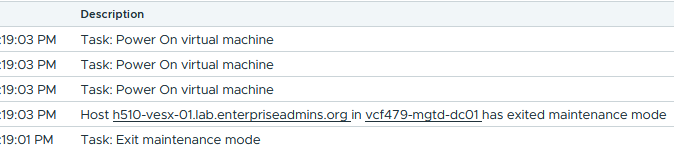
4. VMs are powered back on automatically.
When remediation finished, the VMs that vLCM shut down were powered back on without any manual step. This is logged in the Exit Maintenance Mode task a couple minutes later.
The Answer
Yes, “Power Off” in the vLCM remediation settings attempts a graceful guest OS shutdown first. If the guest shutdown fails, for example because VMware Tools isn’t installed, vLCM falls back to a hard power off for that VM.
This matches the customer’s manual workflow, and it also handles the VMs they’d have had to deal with by hand.
Things to Keep in Mind
- VMware Tools matters. Any VM without running Tools will be hard powered off. Check Tools status before remediating, especially for appliances and older or specialty guests.
- Outdated Tools still worked in my test, but I’d still keep Tools current. It’s one less variable.
- Standalone hosts have no DRS. On a cluster, VMs would typically be migrated with vMotion. On a standalone host there’s nowhere to move them, which is why this power state setting matters.
- Only VMs that vLCM powered off are powered back on. If a VM was already off before remediation, it stays off. (I did an extra round of testing to validate this as well.)
Conclusion
When the documentation is silent, the event log is your friend. The task events show exactly what vLCM does at each step. In this case they confirm that Power Off is gentler than the name suggests.
If you’re updating standalone hosts with vLCM images, you can set the power state to Power Off and skip the manual shutdown and power-on steps, as long as your VMs have working VMware Tools. If needed, vLCM will still step in and “Power Off” the VM if that is needed.