VMware Workstation Lab Overview – with Linked Clones

I like to have easy access to a variety of lab environments. I keep a fairly active home lab which has a focus on persistent virtual machines — like running copies of various vCenter Server releases, vRealize Suite, Horizon, etc. I like to consider these sort of ‘production’ as when they break I will typically troubleshoot and repair them in place. However, I also like to have very disposable environments that can be destroyed and easily recreated to iterate through some testing. I’ve used an environment before that referred to these as ‘smash labs’ because you could snapshot and smash things as necessary. I’ve been using VMware Workstation and linked clones for a while to provide this sort of ‘smash lab’ environment. I recently had a need to switch PCs and decided to rebuild this environment and document the process. The next few blog posts will focus on various aspects of this project, starting with the end result, and then posts covering the builds for each individual VM.

  1. lab-mgmt-01: The management console/GUI that also acts as a domain controller, DNS Server, Certificate Authority, and NAT gateway.
  2. lab-esxi-02 and lab-esxi-03: I’ll cover these two VMs in one post because they are very similar. One is a nested ESXi 7.0.3 host and the other is a nested ESXi 8.0.0 host, each containing a corresponding vCenter Server Appliance.
  3. lab-dock-14: A Photon OS VM with docker and nfs-server services enabled.

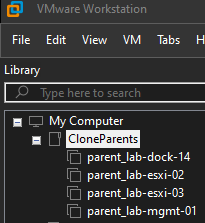
We can see all four of these VMs in the following screenshot. You can see that I named them with a parent_ prefix, and that is because I don’t typically power on these VMs, but instead create linked clones that are disposable. This allows me to create various instances of these VMs and switch between them as needed.
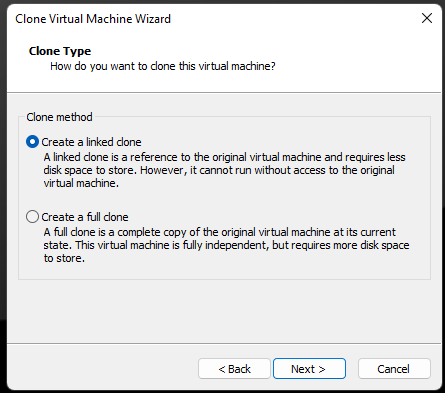
For example, if I need to test something, like an SSL certificate replacement script for vCenter Server 7.0.3, I would create linked clones of parent_lab-mgmt-01 and parent_lab-esxi-02 by right clicking the VM > Manage > Clone. In the wizard that pops up I would select “An existing snapshot (powered off only)” and then selecting “Create a linked clone” on the next page. After giving the VM a name, the clone operation is completed nearly instantly. Relevant screenshots are included below:

These linked clones can be powered on and used as needed. The VMs have static IP addresses, so the way networking is configured I can only power on one linked clone copy at a time, but due to resource limitations on my laptop this hasn’t been a problem.

While we are talking about IP addresses, it is probably helpful to understand the topology that we’ve built. The following image should capture how the VMs interact with each other and the outside network.

As you can see, the lab-mgmt-01 virtual machine is serving as a gateway between the lab network and rest of the network. If we need to test something as if we are in an airgapped network, we can simply disable the NIC1 (Ethernet0) interface on the management server. Without this adapter working, the rest of the lab becomes isolated from the internet and any other services.

The parent VMs could have a few snapshots. As shown in the following example, one of the snapshots is in use and therefore is locked and cannot be deleted.
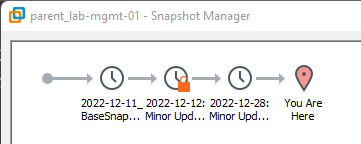
Once the test is complete, I could power off my two temporary clones and either delete them or keep them for a couple of days (in case I need to refer back to logs or such).

The next few posts will focus on configuration of the individual component VMs that make up this ‘smash lab’ environment.
Posted in Lab Infrastructure, Virtualization | 3 Comments

Which virtual machines have cloned vTPM devices?

In vSphere 7.0, when a virtual machine with a vTPM device is cloned, the secrets and identity in the vTPM are cloned as well. In vSphere 8.0 there is an option during a clone to replace the vTPM so that it gets its own secrets and identity (more information available here: Clone an Encrypted Virtual Machine (vmware.com)).

Someone recently asked me if it would be possible to programmatically find VMs that had duplicate key/secrets. I looked and found a Get-VTpm cmdlet, which returns a VTpm Structure that contains an Id and Key property. I suspected that the Key property would contain the key we were interested in, so I setup a quick test to confirm. Here is the output of a few VMs with vTPM devices showing the Id and Key values.

 Get-VM | Get-VTpm | select Parent, Name, Id, Key

Parent              Name        Id                             Key
------              ----        --                             ---
clone_unique        Virtual TPM VirtualMachine-vm-1020/11000 11000
clone_dupeVtpm      Virtual TPM VirtualMachine-vm-1019/11000 11000
New Virtual Machine Virtual TPM VirtualMachine-vm-1013/11000 11000

As we can see, the Key is actually the hardware device key of 11000 which is static, regardless of whether we expect a duplicate vTPM or not.

However, digging into ExtensionData I found some other more interesting properties, specifically EndorsementKeyCertificateSigningRequest and EndorsementKeyCertificate. Comparing the EndorsementKeyCertificate property confirmed that when a vTPM is duplicated this key is the same, but when it has been replaced it is unique. Taking that information into account, this one liner would group vTPMs by duplicate keys:

Get-VM | Get-VTpm | Select-Object Parent, @{N='vTpmEndorsementKeyCertificate';E={[string][System.Text.Encoding]::Unicode.GetBytes($_.ExtensionData.EndorsementKeyCertificate[1])}} | Group-Object vTpmEndorsementKeyCertificate

The output of this command would be a grouping per key. The Group property would contain all the VM names (aka Parent in this context) using the same key. In the example below, there is 1 VM with a unique key and 2 VMs sharing a key.

Count Name                      Group
----- ----                      -----
    1 52 0 56 0 32 0 49 0 51... {@{Parent=clone_unique; vTpmEndorsementKeyCertificate=52 0 56 0 32 0 49 0 51 0 48 0 32 0 51 0 32 0 50 0 49 0 57 0 32 0 52 0 56 0 3...
    2 52 0 56 0 32 0 49 0 51... {@{Parent=clone_dupeVtpm; vTpmEndorsementKeyCertificate=52 0 56 0 32 0 49 0 51 0 48 0 32 0 51 0 32 0 50 0 49 0 57 0 32 0 52 0 56 0...

Using this information we could remove/replace the vTPM in the duplicate VMs if needed to ensure a unique key. Note, per the documentation here, “As a best practice, ensure that your workloads no longer use a vTPM before you replace the keys. Otherwise, the workloads in the cloned virtual machine might not function correctly.”

Posted in Scripting, Virtualization | Leave a comment

VMware Skyline Insights API PowerShell Module

VMware Skyline is a proactive support tool to help customers avoid problems before they occur. More information on the service can be found here: https://www.vmware.com/support/services/skyline.html. One feature of this service is a GraphQL based API known as the Skyline Insights API. Using this API, you can query for active findings (the problems known/covered in the Skyline catalog) and for affected objects (the inventory items impacted by these findings). This was my first attempt at using a GraphQL based interface and it had a few learning curves.

The first learning curve with GraphQL was dealing with iterating through the results set. By default, the Insights API only returns 200 results per query. Once you have the first 200 records, if the query has more results you need to ask for the next batch of 200, and so on until you have all the results. This is easy enough to do, however the API will eventually start rate limiting queries against a Skyline Organization. Due to this, we also need some logic to account for these HTTP 429 rate limiting responses. As I attempted to solve these issues, I ended up creating a PowerShell module that would account for these lessons learned. The remainder of this post will cover how to use this new VMware.Skyline.InsightsApi PowerShell module.

To get started, you’ll need a API token. The process to create one is well documented here: https://blogs.vmware.com/kb/2021/12/skyline-insights-api-getting-started.html.

Second, you’ll need the module. All of the code for this is available in the VMware PowerCLI-Example-Scripts repo at https://github.com/vmware/PowerCLI-Example-Scripts/tree/master/Modules/VMware.Skyline.InsightsApi and also available in the PowerShell Gallery. The easiest way to install this module is with Install-Module VMware.Skyline.InsightsApi. This module contains 7 functions:

Get-Command -Module VMware.Skyline.InsightsApi

CommandType Name                             Version Source
----------- ----                             ------- ------
Function    Connect-SkylineInsights          1.0.0   VMware.Skyline.InsightsApi
Function    Disconnect-SkylineInsights       1.0.0   VMware.Skyline.InsightsApi
Function    Format-SkylineResult             1.0.0   VMware.Skyline.InsightsApi
Function    Get-SkylineAffectedObject        1.0.0   VMware.Skyline.InsightsApi
Function    Get-SkylineFinding               1.0.0   VMware.Skyline.InsightsApi
Function    Invoke-SkylineInsightsApi        1.0.0   VMware.Skyline.InsightsApi
Function    Start-SkylineInsightsApiExplorer 1.0.0   VMware.Skyline.InsightsApi

The first two functions listed (Connect-SkylineInsights and Disconnect-SkylineInsights) are used to connect to the API. The first requires an -apiKey parameter, which we obtained earlier. With this apiKey a global variable is created ($Global:DefaultSkylineConnection) containing the bearer token used to query the API. The second function simply clears out this global variable. As a safety mechanism, logic exists in the helper function to prevent the other functions from executing if this global variable is not present.

The Format-SkylineResult function is an optional function that helps with converting some of the objects returned by the API into strings. This is useful if you want to export the output into something like a CSV file. By default, if you attempt to pass the output from one of the other functions to a CSV, like Get-SkylineFinding | Export-Csv D:tmp\mySkylineFindings.csv many of the columns will end up with System.Object[] and the date values will be stored as long integers. If we also use this function, such as Get-SkylineFinding | Format-SkylineResult | Export-Csv D:tmp\mySkylineFindings.csv the objects are converted to strings (that can be separated by the value you pass to -separator) and the dates are converted to PowerShell dates.

The next function listed, Get-SkylineAffectedObject will return the list of affected inventory findings. It requires a -findingId and a -products input parameter to be passed in, either by property name or pipeline. A ‘product’ in this context is the case sensitive name of an endpoint in the Skyline Inventory, such as a vCenter Server name, Horizon Connection Server, vROps instance or the like. The ‘findingId’ is the case sensitive ID of the finding / issue that Skyline is aware of. Both of these properties, in the expected case, can be uncovered with the next function.

Next up, Get-SkylineFinding is a function that requires no input parameters, but does support three — the same -findingId and -products described above, as well as -severity. You can specify any number of these parameters, either by name or pipeline. The severity parameter is implemented client side, so all records are returned to the function, but the function will only return those matching one of the Skyline finding severities (Critical, Moderate, or Trivial). The output of this function can be piped to the above AffectedObject function, such as Get-SkylineFinding -severity:CRITICAL | Get-SkylineAffectedObject .

The Invoke-SkylineInsightsApi function is a proxy function that is consumed by both Get-SkylineAffectedObject and Get-SkylineFinding and is usually not directly consumed. It is exposed in the function for testing and any sort of future use. This is where much of the logic is implemented so that it can be shared by the two get functions.

Last, but not least, is the Start-SkylineInsightsApiExplorer function. This function will take the bearer token from the Connect-SkylineInsights function, put it in the clipboard, then launch the Skyline Insights API Explorer website in a web browser. From here, you can paste the bearer token into the ‘Request Headers’ area and interactively explore the GraphQL query for Skyline Findings.

I hope you find this module useful. If you have any feedback please leave a comment below or open an issue in the PowerCLI-Example-Scripts repo here: https://github.com/vmware/PowerCLI-Example-Scripts/issues.

Posted in Scripting, Virtualization | 1 Comment

Uncovering missing Active Directory subnets with vRealize Log Insight

In a recent post (https://enterpriseadmins.org/blog/virtualization/domain-controllers-and-micro-segmentation/) I described an issue where authentication may not work as desired when Active Directory sites and Services Subnets are not properly defined. There is often a disconnect in large enterprises where network/subnet creation and active directory aren’t managed by the same folks, so occurrences like the one I described are all too common. I remember many years ago writing a VBScript that parsed a log file to try and find new networks so that we could create subnet definitions. I decided to see what new options existed in this space and was surprised to see that things were mostly unchanged.

Active Directory authentications from clients without subnets defined are still logged to C:\WINDOWS\Debug\netlogon.log all these years later. This file contains entries such as:

05/12 21:28:11 [6772] LAB: NO_CLIENT_SITE: EUC-VIEWCS-21 192.168.36.50

This suggests that the subnet I use for VDI Management VMs is not mapped to a site in AD Sites and Services through a properly defined subnet. In this case I know that the network 192.168.36.0/24 should map to my US-East-IN site in Active Directory. This is an easy fix, but in dynamic environments something similar is going to happen again.

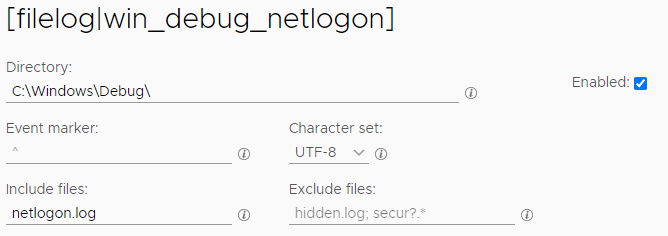
The old VBScript would still work to parse this file, and I could run that as a scheduled task, and occasionally look for these types of events. However, thanks to vRealize Log Insight, I have better ways to deal with log files in my lab these days. All of the systems deployed in my lab run the Log Insight agent, which can be used to pickup this file. I already have a custom Agent Group for my domain controllers, so I can just edit its configuration so that it also picks up the file. To do this, I browse to Management > Agents > select the group “Domain Controllers” > File Logs > New and create an entry for the path in question:

As you can see, we are looking in the C:\Windows\Debug\ directory, specifically for one file named netlogon.log. After adding this entry I selected ‘Save Agent Group’. After a couple of minutes I searched Interactive Logs for no_client_site and had a few hits. This works well, but what I really want to see is which clients are showing up without needing to parse through all of these individual rows. To help with this I can make a custom dashboard based off an extracted field.

Extracted Field

I can see that the data I want is right there at the end of the string, so I can highlight the text and click ‘Extract field’. This brings up a ‘Manage Fields’ screen in the right navigation. By default, the wizard knows that I want to extract an IP Address, but it thinks I only want the one that comes after a specific hostname:

I can simply change this from EUC\-VIEWCS\-21 to (a single space) and it automatically highlights all the entries, not just this one. I can name the field and select save.

Custom Dashboard

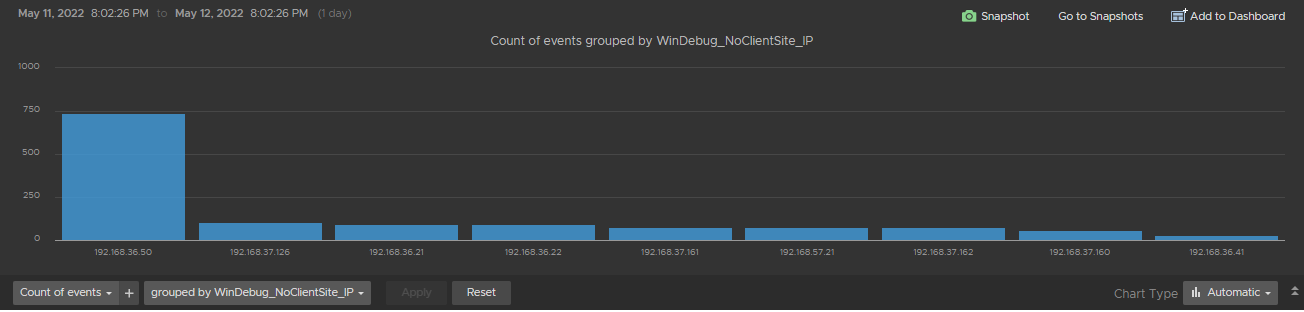
From the explore logs view, I queried for no_client_site I changed the dashboard selections at the top to ‘Count of events’ and grouped by ‘WinDebug_NoClientSite_IP’ which is the name of the extracted field from above. This resulted in a bar graph by the authenticating client where I could easily see the handful of interesting clients.

In the top right of this visual is an ‘Add to Dashboard’ button. I used that button to add this newly created chart to a ‘Active Directory – Custom’ dashboard that I have started.

I now have a visual that will show me the clients that are in subnets not mapped to an Active Directory site. Once I research these subnets and get them properly defined this query should return no results — until the next time a network is created.

Posted in Lab Infrastructure, Virtualization | 1 Comment

Domain Controllers and Micro-segmentation

I was recently reminded of the importance of Active Directory Sites and Services as it relates to micro-segmentation. I was working on an engagement where an organization wanted to implement a zero-trust / micro-segmentation policy by default. As part of this effort, they created a new network with default deny/any firewall rules. The first system to be deployed to this network was a vCenter Server 6.7 system using Integrated Windows Authentication (IWA). Note: IWA is deprecated in vCenter Server 7.0 and will be removed in a future release per https://kb.vmware.com/s/article/78506.

When using IWA, a vCenter Server is joined to the domain, similar to a Windows client system. To support this configuration, a firewall rule was added to allow the client (vCenter Server) to access Active Directory servers in the local site (and remote domain controller hosting the PDC Emulator role, to support password changes). All ports documented at http://ports.vmware.com were included in the rule, but for ‘Active Directory Domain Controllers’ only a subset of the environment was listed.

Attempts to join the domain were failing with a generic error message. We attempt to join from the command line instead, with syntax similar to:

/opt/likewise/bin/domainjoin-cli join domain.com Domain_Administrator Password

Which returned an error that indicated the domain was not reachable. As part of troubleshooting, all domain controllers from the necessary domains were added to the domain controller rule on the firewall. This attempt was successful — indicating that a non-local domain controller was being contacted for our domain join. We checked the status of our vCenter Server Likewise configuration with this command:

/opt/likewise/bin/lw-lsa get-status

Which confirmed that the domain controller in use was not part of the local site. That’s when we checked Active Directory Sites and Services. Remember how I said this was a new network? The subnet had not been defined in AD Sites and Services, so the client didn’t know which site to use. A new subnet was created in AD Sites and Services and properly mapped to the correct/local site. The temporary firewall rule was reverted (so we again only listed local DCs and the PDC emulator role) and a domain join was retried — SUCCESS!

A few other relevant settings came up while investigating this issue, but were not required for this specific engagement. I’m including them below as I believe they could be relevant depending on the micro-segmentation project.

Posted in Virtualization | 1 Comment