Getting data out of vCOps

I’ve been troubleshooting a specific problem where storage latency jumps very high during very short periods of time, usually in the late evening/very early morning hours. The latency is very bad, sometimes in the 2,000ms+ neighborhood. My storage guys see an extreme increase in IOPS coming from my ESXi hosts just before the latency comes into play. The working thought was several VMs were kicking off some type of disk intensive batch job around the same time. This would be a perfect use of the vCOps troubleshooting Top N charts, but the issue doesn’t appear every day and is typically resolved before anyone noticed. Since the Top N charts are realtime they are not super useful in this situation.

What I needed was a way to export which VMs were contributing high IO around the time of the poor latency. Clicking around in vCOps I couldn’t find a way to get this data. (Side note: if anyone knows a good way to do this, please leave a comment.) However, a co-worker pointed me at an unofficial vCOps powershell module available here: http://velemental.com/2012/09/04/unofficial-vmware-vcenter-operations-powershell-module/. Using this module, I was able to get all the data points for disk commands by virtual machine during the time period in questions. With a little where-object goodness we can find only those VMs with over 300 IOPS. Looking at the data before applying this filter, I noticed this value would be around 3x the average IO normally seen during this period of time. This isn’t really a good visualization for the amount of data, but it can give me what I need to be able to continue to troubleshoot:


$startDate = Get-Date "9/27/2013 12:01 AM"
$endDate = Get-Date "9/27/2013 5:00 AM"
Get-Datacenter NestedLab | Get-VM | 
Get-vCOpsResourceMetric -metricKey "virtualDisk:Aggregate of all instances|commandsAveraged_average" -startDate $startDate -endDate $endDate | 
Select-Object Name, @{N="Value";E={[math]::round($_.value,0)}}, Date | 
Where-Object {$_.Value -gt 300}

In my case, this method didn’t give me an obvious answer to my problems. However, it did give me a smaller list of virtual machines to focus on.

Posted in Scripting, Virtualization | 1 Comment

Resize Guest System Partition with PowerCLI

I recently needed to resize system partitions on several Windows 2008R2 virtual machines. To do this with Set-HardDisk the virtual machines must be powered off and you need a helper VM. I was looking for a way to do this without downtime, as that can be arranged when executing the steps manually (grow the disk, log into the guest, rescan disks and then extend the partition). I came up with the following workaround and thought it would be worth sharing. The idea is to set the hard disk to the new size with Set-HardDisk and then use Invoke-VMScript to run diskpart from within the VM. I included the -ResizeGuestPartition switch on Set-HardDisk as that appears to complete the task of re-scanning for disks within disk manager.


$guestName="newDiskTest"
$guestUser="Administrator"
$guestPass="Aw3s0m3pwd"
$newSizeGB=40
 
Get-HardDisk -vm "newDiskTest" | 
?{$_.name -eq "hard disk 1"} | 
Set-HardDisk -CapacityKB ($newSizeGB*1MB) -ResizeGuestPartition -GuestUser $guestUser -GuestPassword $guestPass -confirm:$false -ErrorAction:SilentlyContinue

Invoke-VMScript -vm $guestName -ScriptText "echo select vol c > c:\diskpart.txt && echo extend >> c:\diskpart.txt && diskpart.exe /s c:\diskpart.txt" -GuestUser $guestUser -GuestPassword $guestPass -ScriptType BAT
Posted in Scripting, Virtualization | 4 Comments

vSphere High Performance Cookbook

vSpere High Performance Cookbook

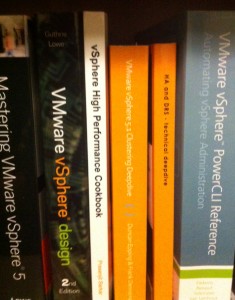
I’ve been working on a little side project recently — reviewing a book for Packt Publishing.  This process has given me a new respect for authors and the process behind writing a book.  The book – vSphere High Performance Cookbook – has been published and you can check it out here: http://bit.ly/14sDuyk.

Here is an overview of the book:

  • Troubleshoot real-world vSphere performance issues and identify their root causes
  • Design and configure CPU, memory, networking, and storage for better and more reliable performance
  • Comprehensive coverage of performance issues and solutions including vCenter Server design and virtual machine and application tuning
Posted in Virtualization | Leave a comment

Script to ping a list of computer names

A few weeks ago, I co-worker asked for a script to ping a list of computer names. I thought I had one on my blog, but couldn’t find it. I decided to post a copy here to make it easier to find in the future. This is very simple, and doesn’t do any sort of multithreading, but for a short list it will get the job done pretty quick:


$ping = New-Object system.net.networkinformation.ping
Get-Content someComputerList.txt | %{
     try {$results = $ping.Send($_).Status } catch { $results = $false }
     New-Object psobject -Property @{ Name=$_ ; Results=$results }
}
Posted in Scripting | Leave a comment

Reviewing DNS logs with PowerShell

I recently helped out on a project where DNS services were being moved to different hosts with new IP addresses. After updating the DHCP scope options and static DNS configuration settings on all servers, the team turned on DNS logging to look for any hosts still using the old DNS servers. The logs contained a lot more records than originally anticipated, so I wrote the following code to help summarize the logs.

This first block of code found all of the DNS queries that didnt come from domain controllers, manipulated the log file entry to get just the source IP and stored all the results in a collection named myResults.


# Create a pipe separated list of domain controllers
$listOfDCs = "192.168.0.40|192.168.5.20|192.168.10.60"
$loopbackIPv6 = [regex]::Escape("::1")
 
$myResults = @()
Get-Content e:\dnslogs\dns.log | ?{$_ -match ' PACKET  ' -and $_ -match "UDP Rcv " -and $_ -notmatch $listOfDCs -and $_ -notmatch $loopbackIPv6} | %{
  $sourceIP = (($_ -split("UDP Rcv "))[1] -split(" "))[0]
  $myResults += New-Object psobject -Property @{
    SourceIP = $sourceIP
    FullLine = $_
  } # end new object
} # end dns log loop

Once we rearranged the data so that it would be more usable, we wanted to find the source IP addresses responsible for the majority of the lookups. The idea here is that once you resolve the issue with these hosts, you can recreate the DNS log file and the next pass through will contain fewer entries and therefor run faster. Using powershell this is a pretty quick one liner after you run the block of code above.


$myResults | Group-Object -Property SourceIP | Sort-Object Count -Descending

That is helpful, but the team really wanted to know host name. Using the data from host naming convention, they could tell what team would be responsible for resolution of the issue. With just a few more lines of code we can easily return that information too.


# Since server guys are more likely to know host names than IP address, we will loop through the resutls and
# lookup the host name, then sort the list to find the largest number of lookups
$myResults | Group-Object -Property SourceIP | Sort-Object Count -Descending | %{
  $sourceName = try { [system.net.dns]::GetHostByAddress($_.Name).HostName } catch { "UNKNOWN" }
  New-Object psobject -property @{
    HostName = $sourceName
    IP = $_.Name
    Count = $_.Count
  }
}
Posted in Scripting | Leave a comment